Anker soundcore Space 2 Pro is designed to deliver clear and high-quality sound. If the sound quality is not as expected, the left and right audio levels sound unbalanced, the volume seems lower than expected, or you notice a slight background hiss, the issue may be related to audio settings, codec selection, fit, audio source quality, or the surrounding wireless environment.
Please refer to the following information for common sound quality situations and troubleshooting steps.
1. If the sound quality is not what you expected, try the following steps in order. In many cases, a small adjustment can make a noticeable difference.
a. Check the Quality of the Audio File
If possible, try playing a lossless audio format such as FLAC or WAV, and avoid MP3 files below 128 kbps.
b. Reduce Interference and Keep the Network Connection Stable.
Reduce interference: Stay away from devices that use the 2.4 GHz band, such as Wi-Fi routers, microwaves, and other Bluetooth devices.
Avoid obstructions: Make sure there are no walls or metal objects between your phone and the headphones.
c. Check the Bluetooth Audio Codec
Different Bluetooth codecs provide different levels of sound quality:
SBC: A basic Bluetooth codec that uses relatively high compression.
AAC: Commonly used on Apple devices and can provide better audio quality than SBC.
LDAC: Supports higher bitrates for higher-quality audio and requires Android 8.0 or later.
Try switching to an appropriate codec in your phone's Bluetooth settings.
d. Check Your Phone's Audio Effect Settings
Turn off system-level audio effects such as Spatial Audio or EQ to avoid combining them with the headphones' own audio processing.
e. Adjust the Sound in the App
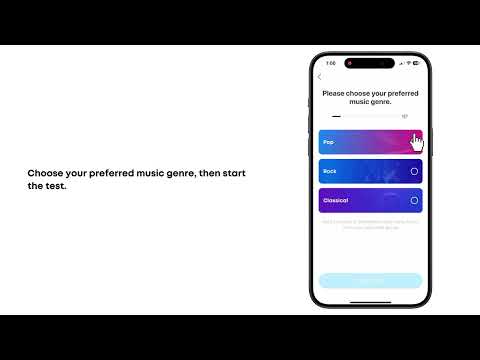
Open the soundcore app and select your preferred EQ preset, or create a custom EQ.
2. If the volume sounds uneven between the left and right sides, try the following steps in order:
a. Check the Balance Settings
Uneven sound can sometimes be caused by device or app settings.
Phone / Computer: Go to your device's sound or audio settings and make sure the left / right balance is centered. On some devices, this setting is located under Accessibility.
Playback App: Some music or video apps have their own channel balance settings. Make sure the balance is set to the center.
b. Reduce Interference
Stay away from potential sources of interference such as Wi-Fi routers and microwaves. If possible, test the headphones in an environment with minimal wireless interference to rule out environmental factors.
c. Switch the Audio Codec
Go to your phone's Developer options and try changing the Bluetooth audio codec to another option, such as SBC or AAC. Some codec compatibility issues may affect audio playback.
d. Try Different Audio Content
Play several different songs or videos to rule out an issue with the left or right channel in a specific audio source.
3. If the headphone volume is lower than expected, or the volume is already at maximum but still sounds too low, check the following:
a. Android Users: Check Bluetooth Volume Synchronization
Some Android phones provide a Bluetooth volume synchronization or absolute-volume setting. The setting name and location vary by phone model.
Check your Bluetooth settings first. If the option is not available, your phone may provide additional Bluetooth audio settings under Developer options.
b. iPhone Users: Check Reduce Loud Audio
Go to Settings > Sounds & Haptics > Headphone Safety and check whether Reduce Loud Audio is enabled. This feature can limit maximum headphone volume.
c. Computer Users: Check Both Volume Controls
Depending on the computer and Bluetooth implementation, the computer and headphone volume controls may behave independently. Increase the computer volume, then fine-tune the level using the headphone controls.
d. Check the Fit
Make sure the headphones are positioned correctly and form a good seal. A loose fit can cause sound leakage and make the volume seem lower.
e. Consider Listening Preferences
Perceived loudness varies from person to person. Compare the headphones at a similar volume setting with another pair of headphones you regularly use.
f. Adjust the EQ
Open the soundcore app and choose an EQ preset that suits your listening preference, or create a custom EQ.
4. Why is there a slight background hiss from these Bluetooth headphones?
a. When no audio is playing, you may hear a faint background hiss from the headphones in very quiet environments. A small amount of electronic noise can occur as part of the headphone's amplification and signal-processing circuitry.
b. If the sound is faint and is no longer noticeable during normal playback, it may be within normal operating behavior. If the noise is loud, occurs only on one side, or remains clearly audible during playback, contact soundcore support.
If you encounter any other issues or your issue has not been resolved, please contact us for further assistance.