Anker soundcore Space 2 Pro offers a range of sound and audio features, from Spatial Audio and personalized HearID EQ to high-quality codecs such as LDAC. This article introduces these features, explains how to set them up, and lists the supported audio specifications so you can get the best listening experience.
What is Spatial Audio, and how do I use it?
When Spatial Audio is enabled, it creates a wider, more spacious soundstage, although audio detail may be reduced. It works particularly well for movies and concerts. For music, the effect varies by genre, and the difference may be less noticeable with some tracks. We do not recommend using Spatial Audio for podcasts.
Notes:
1. Spatial Audio and LDAC high-quality mode cannot be enabled at the same time.
2. If your phone has a built-in Dolby audio feature, turn on both Dolby on your phone and Spatial Audio on the headphones for the best effect.
How do I take the HearID 5.0 hearing test?
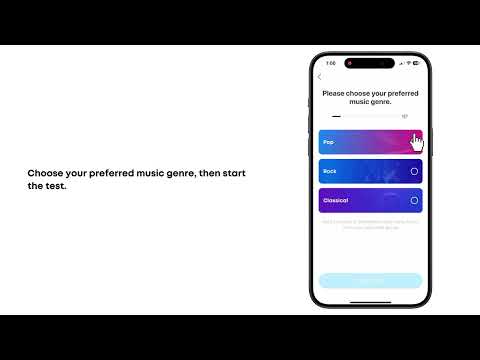
The HearID 5.0 hearing test creates a personalized sound profile in two steps:
-
Choose your preferred music type: Rock, Pop, or Classical.
-
The system plays two audio samples, A and B, for you to compare across 7 rounds. The differences are more noticeable in the first 3 rounds, making them easier to distinguish. In the final 4 rounds, the differences become more subtle and detail-focused.It is normal if you cannot hear a difference in some of these rounds.
Note: How easily you can distinguish between samples A and B depends on your hearing sensitivity and how you perceive different sound characteristics.
How do I save and use my personalized EQ after the HearID test?
After completing the HearID hearing test, you can save up to 10 personalized EQ profiles. Choose the EQ profile you prefer for different listening scenarios, or go to your history at any time to select a previously saved profile.
Note: EQ and sound-effect settings in the soundcore app apply to media playback, such as music, videos, and podcasts. They do not affect call audio quality.
How do I use LDAC?
LDAC is a high-quality Bluetooth audio codec that can provide higher-quality audio when enabled.
1. On Android phones, LDAC requires Android 8.0 or later. LDAC provides higher audio quality but consumes more power and may reduce playback time.
2. Before using LDAC, check whether your phone supports it. If your phone does not support LDAC, the feature will not be available.
3. For the best LDAC performance and a stable Bluetooth connection, use it in an environment with minimal wireless interference.
4. iOS devices do not support LDAC.
5. On Samsung phones, enable LDAC in the soundcore app, then manually enable LDAC in your phone's Bluetooth settings.
6. When using LDAC in your phone's Bluetooth audio settings, select the default adaptive bitrate or 330 kbps for better connection stability. Higher bitrates may occasionally cause audio stuttering or disconnections, especially when multiple devices are connected.
7. Multi-device connection is supported in LDAC mode.
8. If you are using a non-Android audio player, such as certain MP3 players, you can use LDAC high-quality mode as long as the device supports LDAC.
9. The headphones currently support Bluetooth and wired AUX connections. They do not support audio transmission through the USB-C port.
Note: LDAC and Spatial Audio cannot be enabled at the same time.
If you encounter any other issues or your issue has not been resolved, please contact us for further assistance.