Anker soundcore Space 2 Pro is designed to provide a stable, clear, and high-quality listening experience.
If you experience audio stuttering, delay, no sound, sound coming from your phone speaker, uneven left and right audio, lower-than-expected volume, or slight background hiss, the issue may be related to device settings, Bluetooth codec selection, compatibility, audio source quality, or your surrounding wireless environment.
Please refer to the following information for common audio issues and troubleshooting steps.
1. What should I do if I experience audio stuttering or lag?
If you experience audio stuttering, delays, or interruptions while using the headphones, one or more of the following factors may be responsible:
a. Some apps, such as video apps and games, may cause audio delays or stuttering due to how they process audio. Try playing the same content in a different app, or check the app settings for a Bluetooth audio optimization option.
b. The high-quality LDAC codec may be less stable on some phones. Go to your phone's Bluetooth settings or Developer options and switch the Bluetooth audio codec to AAC or SBC for better compatibility.
c. Wi-Fi routers, microwaves, and other Bluetooth devices can interfere with the Bluetooth signal. Move away from these sources of interference, or turn off nearby wireless devices you are not using.
d. Make sure there are no walls or metal objects between the headphones and your phone, and keep them within about 33 ft (10 m) of each other.
e. When streaming audio or video online, a weak network connection can cause unstable playback. Make sure your phone has a strong network connection.
f. A significant difference between your phone's Bluetooth version and the headphones' Bluetooth version may affect connection stability. Check whether your phone supports Bluetooth 5.0 or later.
g. If your phone is connected to multiple Bluetooth devices at the same time, such as a smartwatch or speaker, they may compete for Bluetooth resources. Disconnect other Bluetooth devices when possible and try again.
h. If you usually keep your phone in your pocket, try positioning it so the phone's antenna has a clearer path to the headphones. Antenna placement varies by phone model, so check your device specifications if needed. Avoid positioning the phone so that your body or other objects block the signal.
i. To narrow down the cause, connect the headphones to another phone or tablet. If the problem persists, there may be an issue with the headphones. If the audio is stable on another device, the issue may be related to the original device's settings or compatibility.
2. What should I do if there is an audio delay?
Because Bluetooth audio requires processing and wireless transmission, a small amount of latency is normal. The amount of delay can also vary depending on the connected device, app, codec, and network environment. If the delay is noticeable, try the following steps in order:
a. Check the Audio Codec Supported by Your Device
Android users: Go to your phone's Bluetooth settings, tap the settings icon for the connected headphones, and select AAC if available. If your phone supports LDAC, you can also enable LDAC in the soundcore app.
iOS users: AAC is used by default.
b. Optimize the Bluetooth Environment
Keep your phone or computer within 10 ft (3 m) of the headphones and minimize obstructions between them.
Move away from potential sources of wireless interference and temporarily disconnect nearby wireless devices you are not using, if needed.
c. Update the System and Firmware
Make sure your phone's operating system and the headphone firmware are up to date.
d. Adjust Device Settings
Try temporarily turning off audio processing features such as Spatial Audio or EQ, as additional processing may increase latency.
3. What should I do if there is no sound from the headphones?
Please try the following:
a. Check the Audio Output Settings
Phone: While playing audio, check that the headphones are selected as the audio output device.
Computer: Open your computer's sound settings and make sure the headphones are selected as the output device.
b. Check Whether the Headphones Are Connected to Another Device
The headphones support dual-device connection. Check whether they are connected to another device, such as a tablet or computer, that may be taking over the audio. Open the soundcore app and check Dual Connections. If a second device is connected, disconnect it and try again.
c. Update the System or Drivers
Check whether your phone or computer’s operating system is up to date. If you are using a computer, try updating the Bluetooth driver, such as the Realtek or Intel Bluetooth driver.
d. Test with Another Device
Connect the headphones to another phone or computer and check whether audio plays normally. If it does, the original device may have a compatibility or settings issue.
e. Restart the Device
A temporary system issue on your phone or computer can occasionally cause audio problems. Restart the device, reconnect the headphones, and try again.
4. What should I do if sound plays from my phone speaker instead of the headphones?
Please try the following:
a. Check Your Device Settings
iPhone:
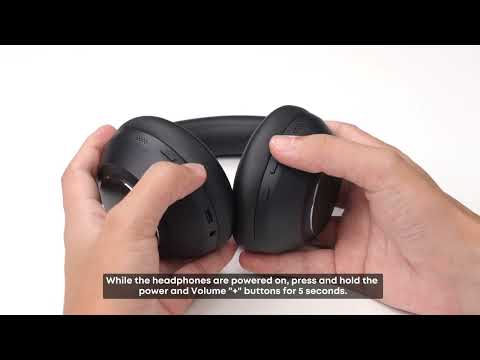
If audio unexpectedly switches back to the phone speaker, turn Bluetooth off and on again, then reconnect the headphones. If the issue continues, reset the headphones to factory settings and pair them again.
For call audio, go to Settings > Accessibility > Touch > Call Audio Routing and select the appropriate Bluetooth option.
Android:
After connecting the headphones, go to Settings > Bluetooth, find the headphones, tap the settings icon, and make sure Media Audio and Call Audio are enabled.
b. Restart Bluetooth
Turn Bluetooth off and on again, then reconnect the headphones.
If you encounter any other issues or your issue has not been resolved, please contact us for further assistance.