This guide covers the everyday operations of your Q31i, including power on/off, music and call controls, voice assistant and Nap mode, ANC mode switching, reset, auto power off, firmware updates, and the charging and battery indicators.
Q31i button guide
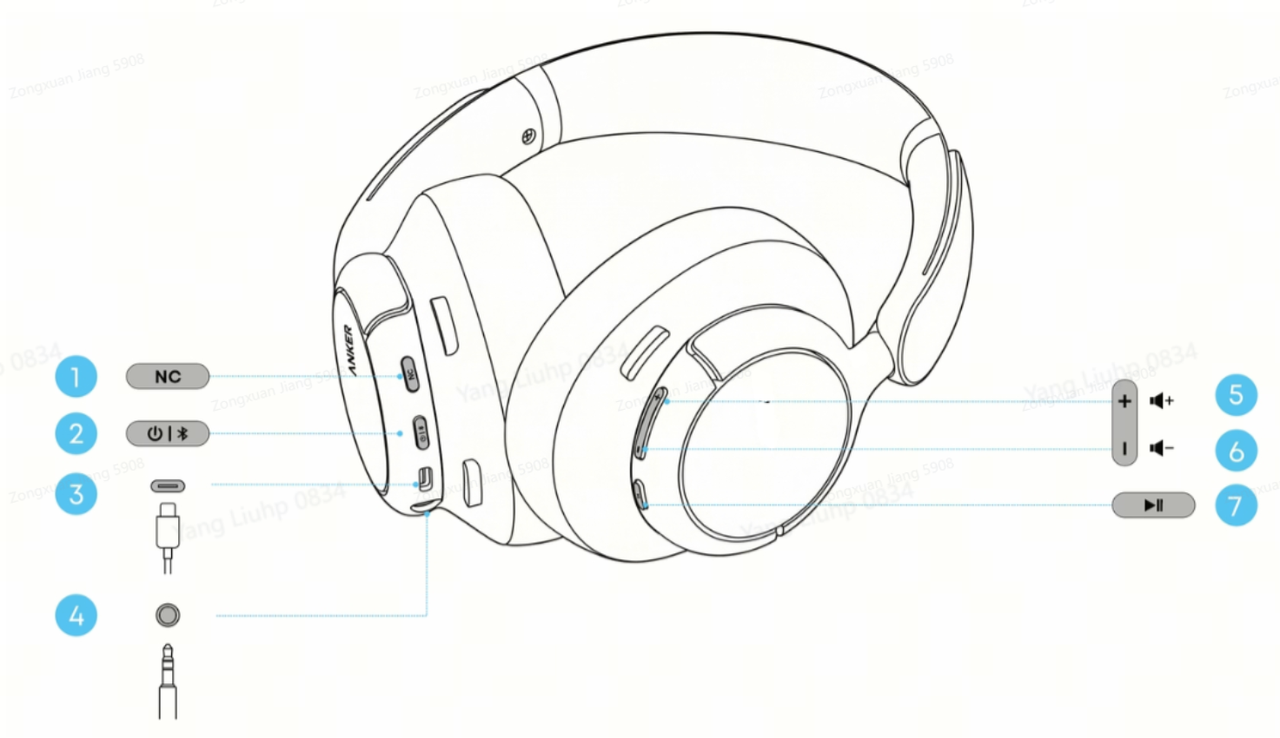
① Noise Cancellation Mode Switching (NC Button)
The NC (Noise Cancellation) button lets you switch the headphone between ANC mode and Transparency mode. ANC (Active Noise Cancellation) uses microphones to pick up ambient noise and reduce it so you can focus on your audio.
-
The headphone enters ANC mode by default each time it powers on.
-
Press the NC button to switch between "ANC mode" and "Transparency mode". To switch to Normal (ANC off), you need to do it manually in the soundcore app. (For details, please refer to "How to Use ANC on soundcore Q31i?")
-
After powering off and on again, the headphone returns to ANC mode.
Note:Transparency mode uses the ANC microphone to pick up and amplify ambient sound so you can hear your surroundings.
② Power On/Off (Power Button)
-
Power on: Press and hold the Power button for about 2 seconds. Release it once the white light flashes.
-
Power off: Press and hold the Power button for about 2 seconds. The headphone is powered off once the white light flashes and then goes out.
③ Charging (Type-C Charging Port)
The Type-C port is used for charging the headphone—use a standard Type-C cable with a 5V/1A charger.
④ Use the Headphone in Wired Mode (3.5mm AUX Port)
The 3.5mm AUX port lets you use the headphone in wired mode—plug in a 3.5mm audio cable to connect to devices that do not support Bluetooth or when you want a wired connection.
⑤ and ⑥ Music Playback Control (Volume Buttons)
-
Press the Volume button once: Adjust the volume.
-
Press and hold the Volume "+" button for about 2 seconds: Skip to the next track.
-
Press and hold the Volume "-" button for about 2 seconds: Skip to the previous track.
-
Press the Multi-function button (MFB) once: Play/Pause.
⑦ Call Control (Multi-Function Button)
-
Click the MFB once: Answer/End a call.
-
Press and hold the MFB for about 2 seconds: Reject an incoming call.
-
During a call, press and hold the MFB for about 2 seconds: Toggle mute/unmute (a prompt tone confirms the switch).
-
If the headphone is connected to two phones and the other phone receives a call while you are on a call: press the MFB once to end the current call and answer the incoming call; press and hold the MFB for about 2 seconds to reject the incoming call and stay on the current call.
Voice Assistant and Nap Mode
The press-and-hold function of the MFB can be customized in the soundcore app. You can set it to one of two functions—Phone Voice Assistant (default) or Nap Mode—but only one can be active at a time; if you switch to Nap Mode, the voice assistant will no longer be triggered by pressing and holding the MFB, and vice versa.
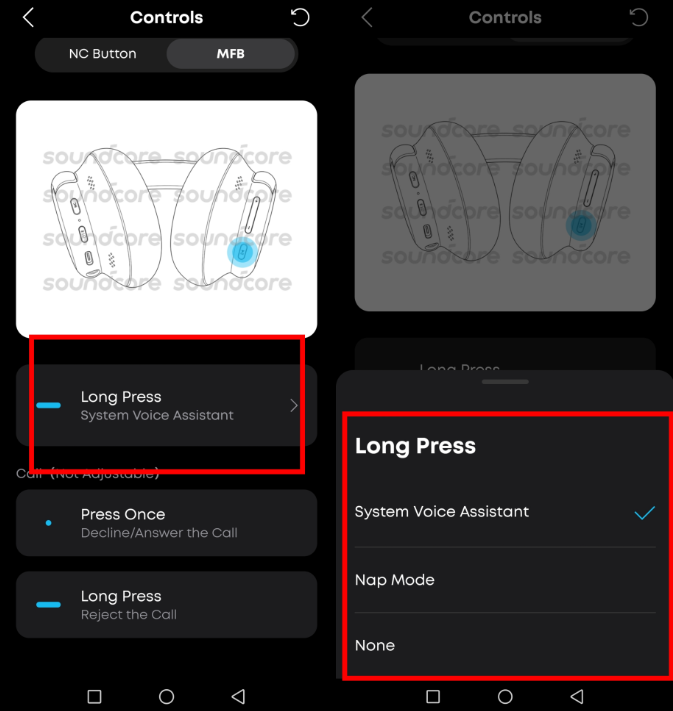
Option 1: Phone Voice Assistant
-
With this set, press and hold the MFB for about 2 seconds to wake your phone's voice assistant.
Option 2: Nap Mode
-
After setting the MFB to "Nap Mode" in the app, press and hold the MFB to enter Nap Mode. You can also turn it on directly via the Nap Mode switch in the app.
-
Nap Mode includes 2 soothing tracks. Press and hold Volume "+" to skip to the next track and Volume "-" to skip to the previous track. You can also set a sleep timer in the app.
Note: In Nap Mode, you cannot play music from your phone, but you can answer calls. Once Nap Mode is activated, ANC turns on automatically and cannot be switched. The volume and tracks cannot be adjusted from the phone and must be controlled using the Volume buttons on the headphone.
Factory Reset / Hard Reset
Factory Reset
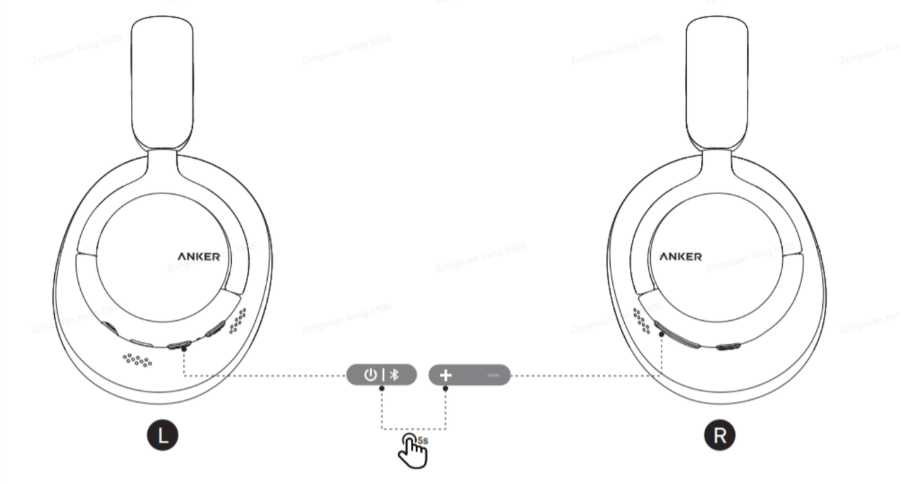
What it is: Restores the headphone to its factory state by clearing all pairing records and settings.
When we recommend: When you experience connection or function issues. Because it clears all data, use it after a hard reset does not help.
Steps:
-
Make sure the headphone is powered on.
-
Press and hold the Power button and the Volume "+" button together for about 5 seconds.(As shown in the image above)
-
When the red power light slowly flashes 3 times, the factory reset is in progress.
Hard Reset
What it is: A forced restart that does not change pairing records or settings and causes no data loss.
When we recommend: When the headphone is completely unresponsive (buttons not responding, cannot power on, no charging indicator). It is simple and has no data loss, so try it first before a factory reset.
Steps:
-
Use a 5V/1A charger to charge the headphone for about 5 seconds.
-
Unplug the charging cable.
-
Power on the headphone manually.
Auto Power Off and Prompt Tone
-
Auto power off: If the headphone is not connected to any device for 5 hours, it will power off automatically. You can also customize the auto power-off time in the soundcore app—go to "Settings" in the top-right corner > "Auto Power Off", and choose from: 30 minutes / 1 hour / 3 hours / 5 hours / Never.
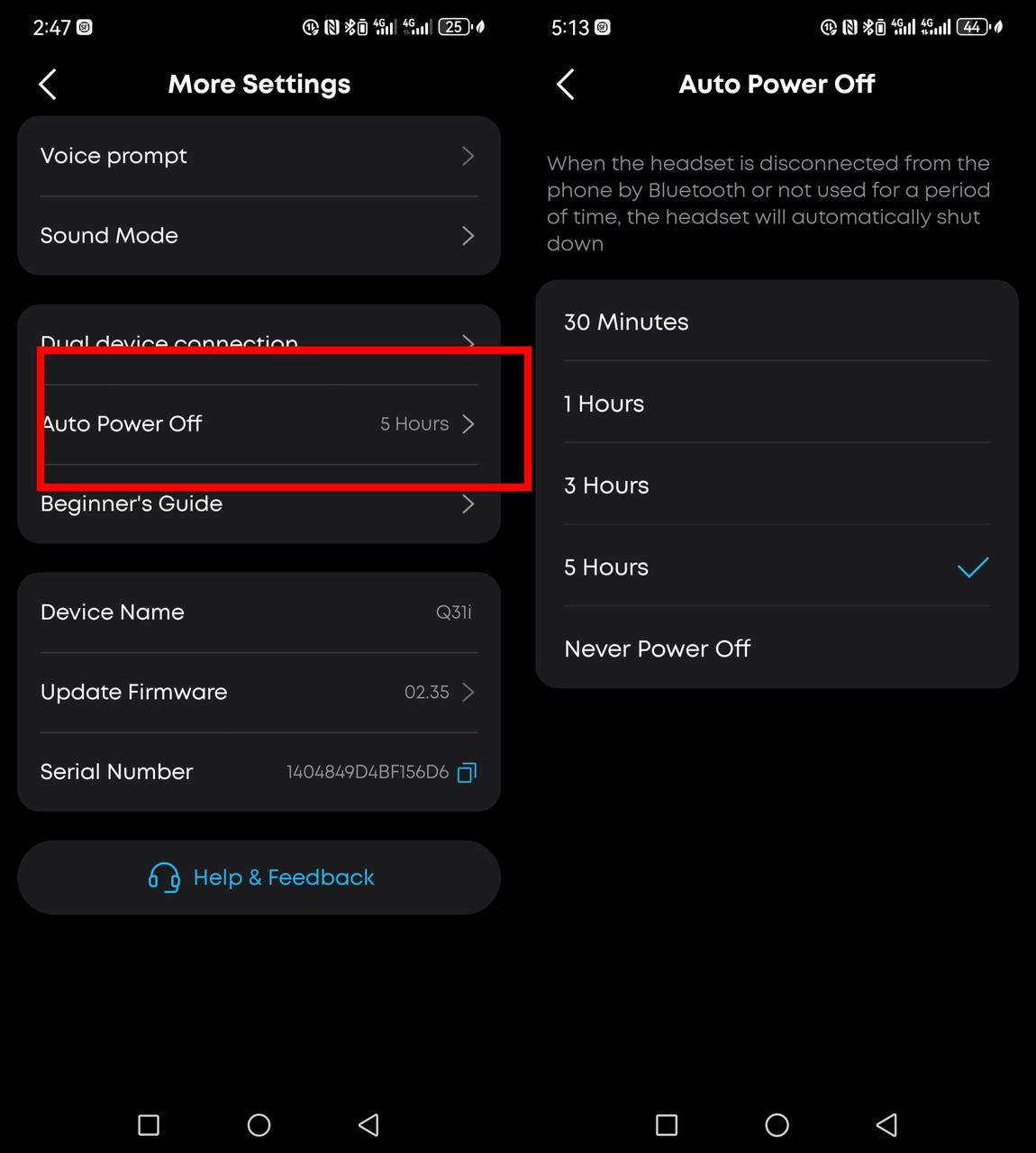
-
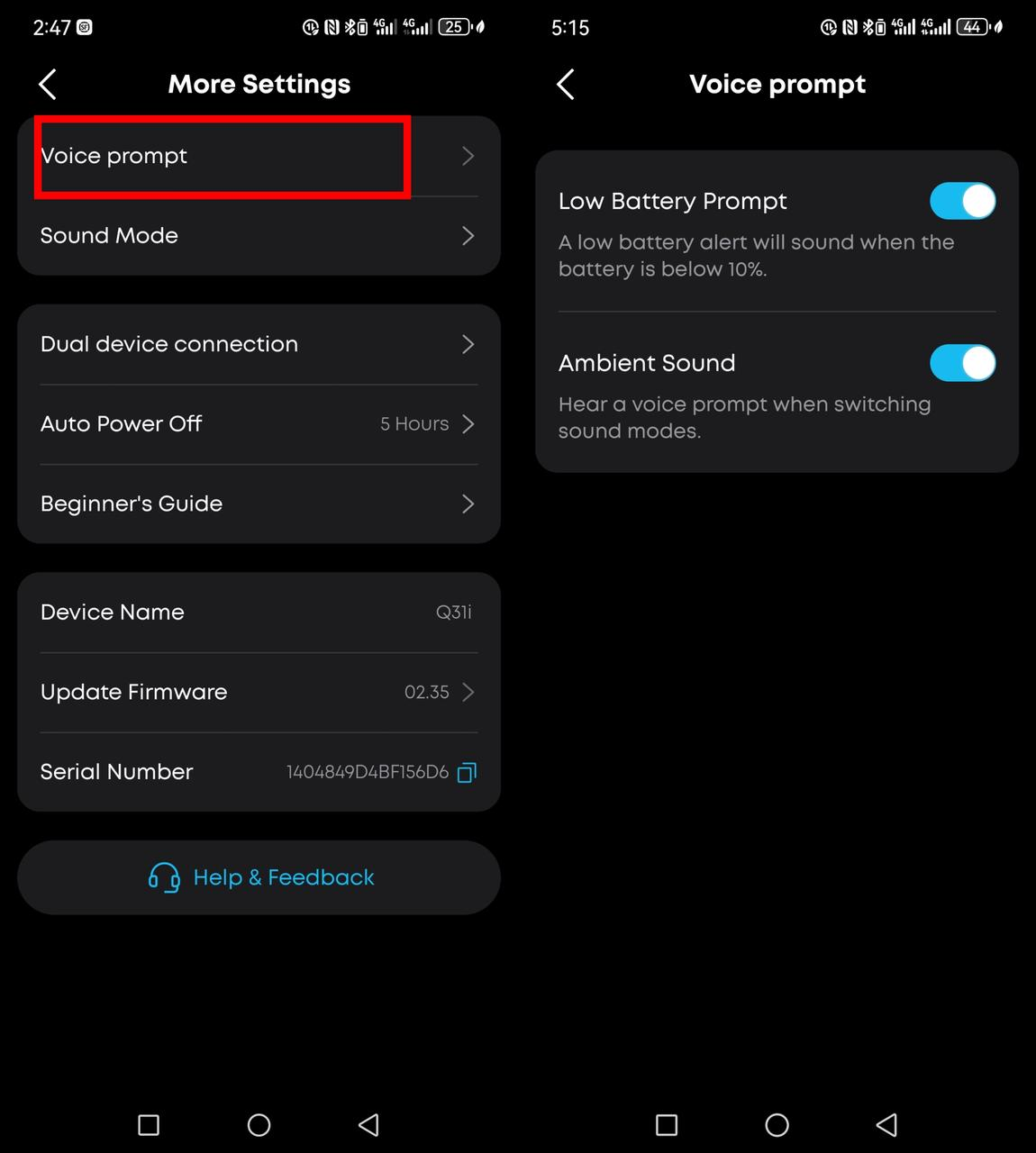
Prompt tones: You can turn off the ambient sound prompt or the low-battery prompt in the soundcore app—go to "Settings" in the top-right corner > "Voice prompt".
Firmware Update
A firmware update installs the latest software released by soundcore onto your headphone. It can fix known issues, improve performance, and unlock new features. Keeping your firmware up to date also helps with connection stability and audio performance.
-
When you open the soundcore app, an update prompt will pop up if new firmware is available. Follow the instructions to update.
-
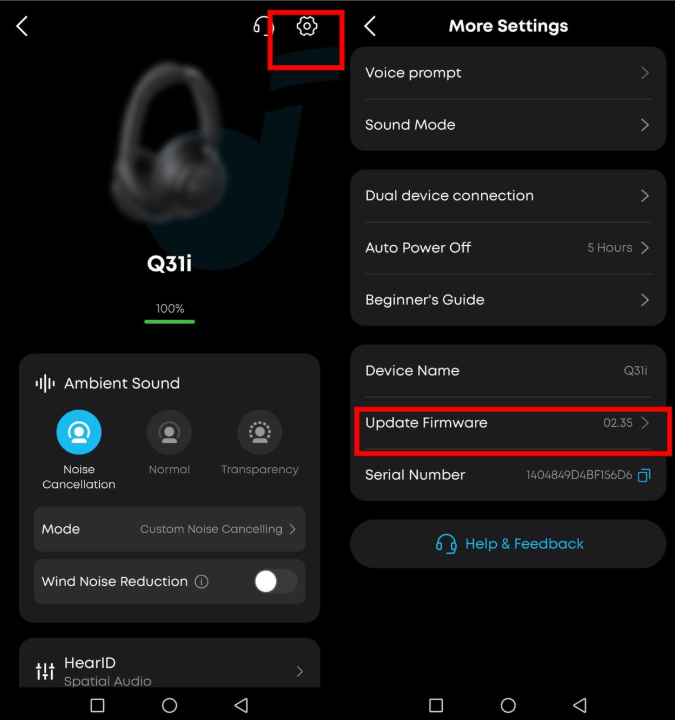
You can also check for updates manually: go to "Settings" > "Update firmware" in the top-right corner of the app.
If you encounter any other issues or your issue has not been resolved, please contact us for further assistance.


