ANKER AeroClip 2 is designed to deliver clear call quality, even in noisy environments.
If you experience any of the following call-related issues:
-
Calls sound unclear
-
You do not hear the ringtone through the earbuds during an incoming call.
-
Call audio does not play through the earbuds after you answer on your phone.
-
There is no sound during calls.
-
The incoming call ringtone plays through both your phone and the earbuds.
These issues may be related to your phone settings.Please try the steps below.
1. What should I do if calls sound unclear?
If calls sound unclear, first determine whether the other person can't hear you clearly or you can't hear them clearly. Then try the following:
a. Check the Fit and Orientation: Make sure the earbuds are worn on the correct side and facing the correct direction. Be especially careful not to swap the left and right earbuds during voice calls, as this can significantly affect voice pickup.
b. Adjust the Wearing Angle: If the sound outlet is too far from your ear, it can affect call audio. Adjust the earbud so it fits closer to your ear.
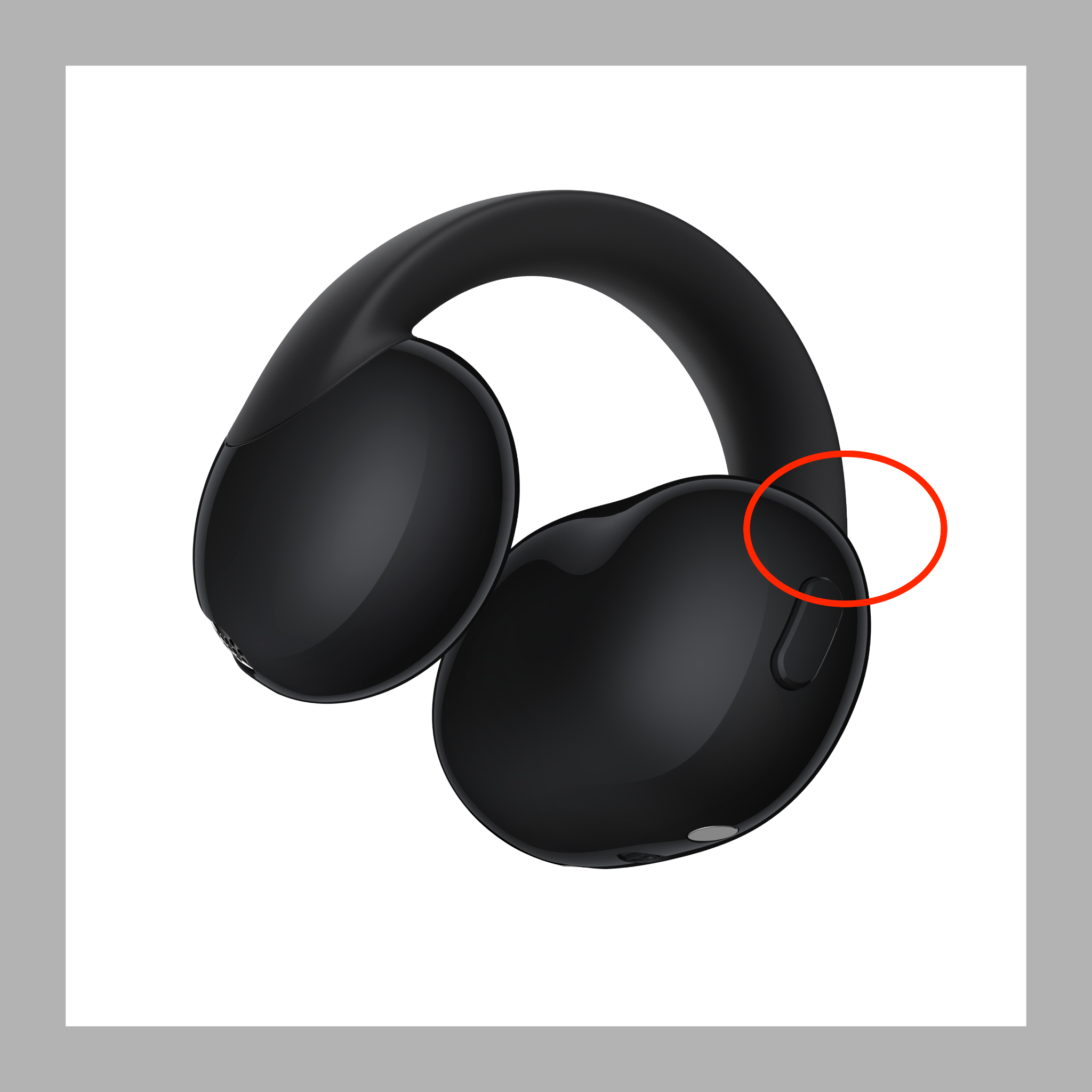
c. Check the Microphone Opening: The microphone is located near where the battery housing connects to the C-shaped bridge. Check whether it is blocked by debris, and clean it if needed.
d. Check Your Surroundings and Signals: A weak signal or noisy surroundings can also affect call quality. Try moving to a different location, and see if the issue improves.
e. Test with Another Contact: Try calling someone else to check whether the issue is related to the other person's device.
f. Ask the Other Person to Remove Their Earbuds: If the other person is also wearing earbuds during the call, ask them to remove their earbuds, and try again.
2. If you do not hear a ringtone through the earbuds during an incoming call, try the following:
a. Check Silent Mode: First, check whether your phone is on silent. If your phone is on silent, the earbuds will not play a ringtone either. Turn off Silent Mode and try again.
b. For iPhone users: Check the “Attention Aware Features” setting. When this feature is enabled, the ringtone volume on both your phone and earbuds will automatically lower when your phone is picked up or your face is detected, which can make it seem like the phone is not ringing. To turn it off, go to Settings > Face ID & Passcode, then disable “Attention Aware Features” to restore normal ringtone volume.
c. Check your calling app’s status: For some calling apps, incoming calls may not trigger a ringtone on your phone or earbuds when the app is running in the background. Keep the calling app open in the foreground and try again.
3. If you are using an iPhone connected to the earbuds, the call audio output may depend on how you answer the call:
Answering with the earbud button: Call audio plays through the earbuds by default.
Answering on your phone: Call audio may default to your phone’s speaker.
To route call audio to the earbuds, go to Settings > Accessibility > Touch > Call Audio Routing on your iPhone, then select Bluetooth Headset.
If you are using an Android device, go to Settings > Bluetooth, find Anker soundcore AeroClip 2, tap to view its settings, and make sure Call Audio is enabled.
4. If there is no sound during a call, try the following:
a. Check the microphone input settings: Make sure your calling app’s microphone input settings are correct and that the app has access to the earbuds’ microphone. If the issue persists, end the call and try again.
b. For Windows 10 users: Adjust your sound settings as follows:
In Settings, search for “Turn mono audio on or off” to open sound settings.
Under “Playback,” turn off Stereo mode and keep Hands-Free mode enabled.
Note: Stereo mode provides better sound quality but typically does not support microphone input. Hands-Free mode supports the microphone for calls and audio playback, but sound quality may be lower.
c. Check your calling app’s microphone and Bluetooth permissions:
• iOS: Go to Settings > Privacy > Microphone, and make sure permission is enabled for the relevant app.
• Android: Go to Settings > App Permissions, and make sure microphone and Bluetooth permissions are enabled for the relevant app.
d. Check for calling app compatibility issues: If the steps above do not resolve the issue, or if there is still no sound when using other calling apps, there may be a compatibility issue with the app. Contact us with your device model and calling app information so we can investigate further.
5. The incoming call ringtone plays through both your phone and the earbuds
This behavior is determined by your phone settings and cannot be controlled directly through the earbuds. Some phones are designed to play incoming call ringtones through both the phone speaker and connected Bluetooth devices to help make sure you do not miss a call.
If this occurs, try the following:
1. Switch your phone to Silent or Vibrate mode.
2. Check your phone settings for an option such as Incoming Call Ringing Device or Bluetooth Headset Ringing, and adjust the setting if available.
We have reported this compatibility issue to our product team and will continue working to improve compatibility through future updates.
If you encounter any other issues or your issue has not been resolved, please contact us for further assistance.