This guide explains how to pair and reconnect your Q31i, use Google Fast Pair, connect two devices at the same time, switch audio between them, and use the AUX wired connection.
First Bluetooth Pairing
-
First power-on (automatic pairing): When you power on the headphone for the first time, it automatically enters pairing mode—no button press is required. Simply turn on Bluetooth on your phone, search for the Q31i, and connect.
-
Daily use (automatic reconnect): After the first pairing, when you power on the headphone, it automatically reconnects to the last used device.
-
Indicator light: A rapidly flashing blue light means the headphone is in pairing mode. After a successful connection, the blue light turns off after 3 seconds.
Google Fast Pair
After the headphone powers on or enters pairing mode via double-clicking the Power button, bring it close to an Android phone running Google Play services (Android 6.0 or above). A pairing window will pop up automatically on the phone screen—tap it to connect quickly.
Connecting a New Device (Manual Pairing)
If you want to pair the headphone with a new device, make it enter pairing mode using either of the following methods:
Option 1: Double-press the Power button
-
With the headphone powered on, double-press the Power button to enter pairing mode.
-
A rapidly flashing blue light means the headphone is in pairing mode.
-
On the new device (phone, computer, etc.), turn on Bluetooth, search for "Anker soundcore Q31i" in the Bluetooth list, and connect.
note:With dual-device connection enabled, you can double-press the Power button while audio is playing to pair with another device.
Option 2: Enter Pairing Mode from Power-Off State
-
Press and hold the Power button for about 5 seconds until the blue light flashes rapidly.
-
The headphone enters pairing mode.
-
On the new device (phone, computer, etc.), turn on Bluetooth.
-
Search for "Anker soundcore Q31i" in the Bluetooth list and connect.
Note: When the headphone powers on, it automatically tries to reconnect to the last used device:
-
If it fails to reconnect within 10 seconds, it will automatically enter pairing mode and remain discoverable for 2 minutes.
-
If no device is paired within these 2 minutes, the headphone enters an idle state—double-press the Power button to re-enter pairing mode.
Dual Device (Multipoint) Connection
-
After the headphone is connected to one device, double-click the Power button to enter dual-device pairing mode, then search for and connect the Q31i from the second device.
-
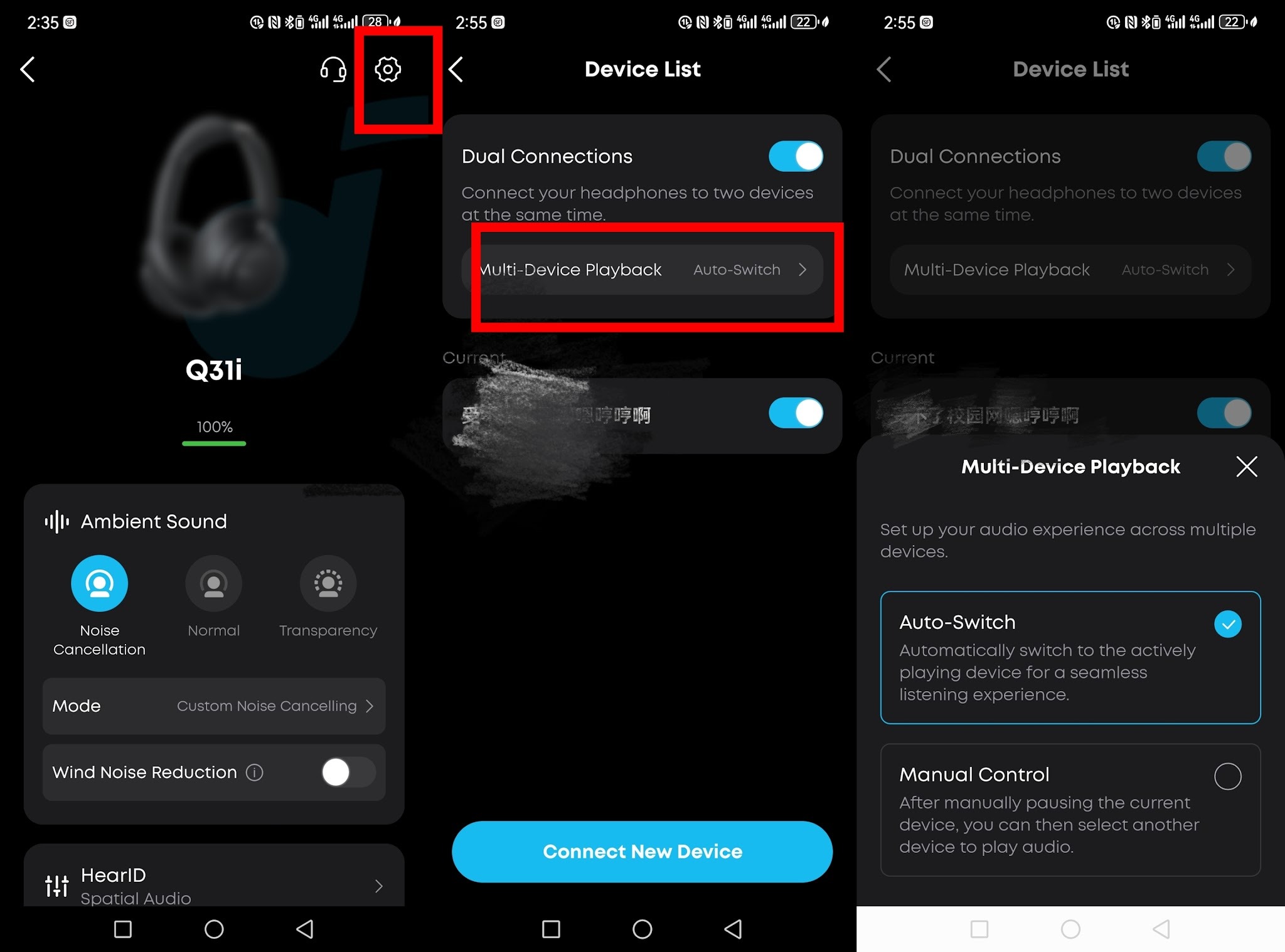
The dual-device connection feature is enabled by default. You can also turn it off in the soundcore app under "Settings" > "Dual device connection" in the top-right corner, or disconnect/delete connected devices from the same page.
Note: LDAC mode does not support dual-device connection. When LDAC is enabled, the headphone can only connect to one device at a time.
Audio Switching (Multipoint Mode)
The Q31i can switch audio playback between two connected devices in two ways:
-
Auto switch: When both devices are connected to the headphone, the device that starts playing will interrupt the previous device's audio. This requires no manual operation and is ideal for frequent switching between a phone and a tablet. The downside is that notification tones or background audio from one device may occasionally cause unexpected interruptions.
-
Manual switch: In dual-device connection, you need to pause the content on the current device, then tap play on the other device to switch audio. This does not auto-switch and requires manual operation (if a carrier phone call comes in, it takes priority automatically).
-
You can go to Settings (top-right corner) > Dual Device Connection > Multi-Device Playback and choose Auto-Switch or Manual Control.
Note: Some web-based videos and music may experience switching issues. Please determine the best approach based on your actual usage.
AUX Wired Connection
If you want to use the wired mode (AUX mode), plug the 3.5mm audio cable into the headphone. Whether the headphone is currently on or off, it will enter wired mode directly.
-
If the headphone is powered on: After inserting the audio cable, the headphone will immediately power off automatically (with a power-off prompt tone), then enter wired mode. If you then unplug the audio cable, the headphone remains off. To continue using it wirelessly, you need to power it on manually again.
-
If the headphone is powered off: After inserting the audio cable, you can use it directly.
Note:
-
In wired mode, the buttons on the headphone do not work, ANC cannot be enabled, and calls cannot be made.
-
When using the wired connection while the headphone is powered on, you may hear a slight humming sound. This is related to the grounding of the connected device and is normal.
If you encounter any other issues or your issue has not been resolved, please contact us for further assistance.


