How to Use Translate in Typeless(D3200)

Q: What does Translate do?

With Translate, your natural speech becomes a ready-to-send message, email, or post in your chosen language. Typeless adapts the phrasing to suit the purpose of your communication while preserving your energy and tone. The translation sounds natural to local readers.


Q: How do I use Translate on macOS or Windows?

Click the text field where you want the translation. Press the Translate shortcut once: Fn + Left Shift on macOS or Right Alt + Right Shift on Windows. Hover over the language on the Voice bar and select a target language. Speak, then press the main shortcut, Fn or Right Alt, to finish. The translation will appear in the text field.


Q: How do I use Translate on mobile?

Focus on a text field. Hold Speak on the Typeless keyboard, swipe up, and choose a target language. Speak in your language, then tap Speak to finish and insert the translation.

Unresolved icon
20 undefined
Download icon
soundcore Work Benutzerhandbuch (D3200)
Download icon
【D3200】【soundcore Work】EU Declaration
Download icon
soundcore Work İstifadəçi təlimatı (D3200)
Download icon
soundcore Work Guide de l'utilisateur (D3200)
Download icon
soundcore work Ръководство за потребителя (D3200)
Download icon
soundcore Work Korisničko uputstvo (D3200)
View More
Play video
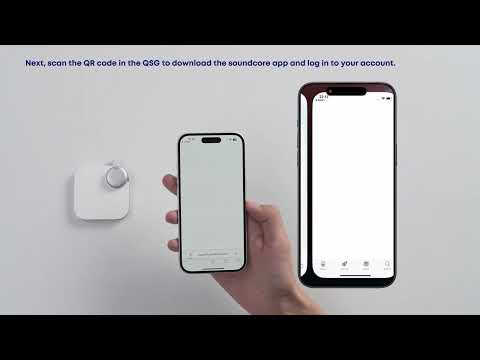
First-Time Setup: Activating and Connecting Your Device | soundcore Support
Play video
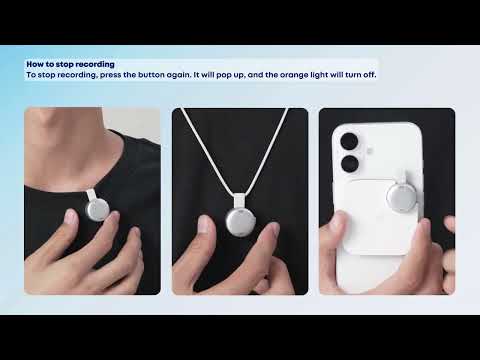
Getting Ready to Record: How to Wear and Use theDevice | soundcore Support
Play video
Recording Controls: Start, Stop, and Mark Key Moments | soundcore Support
Play video
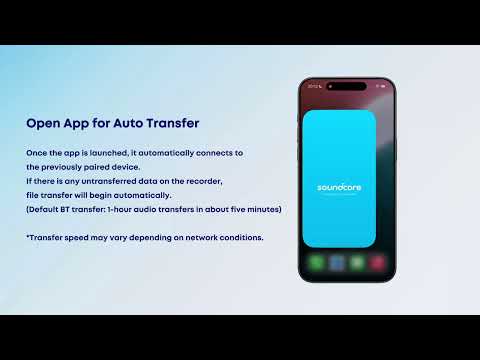
Transferring Audio Recordings for Review, Transcripption, and Summarization | soundcore Support
Play video
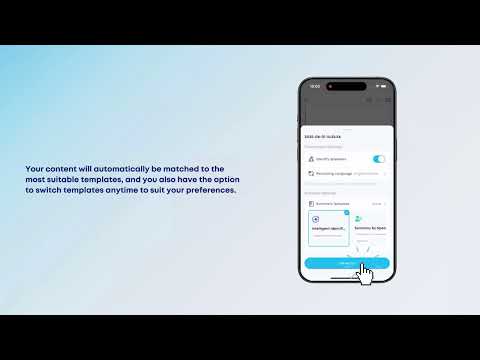
Transcribing and Summarizing Your Recordings for Easy Review | soundcore Support
Play video
Unlock the Full Potential of Your Recordings With Advanced Al Features | soundcore Support
View More
Contact Us