How to Fix PowerConf Mic Issues

- Check the audio input/output settings on your computer.

- Check whether the microphone is muted.

- Reboot the conference app you are using, check the network settings, and try again.

- Upgrade the Bluetooth dongle and the firmware version of PowerConf H500/H700.

- Ensure the headphones are close to your device.


Note: We recommend using the Bluetooth dongle when you are in a conference call on a computer so that you can enjoy a better microphone performance.


If you have additional questions, please contact us at support@ankerwork.com for further assistance. Make sure to mention that you have tried the steps in this FAQ so our agents do not ask you to repeat these steps.


Unresolved icon
20 undefined
Download icon
A3511 EU DOC
Download icon
A3510 PowerConf H700 DOC
Download icon
A3511 PowerConf H500 DOC
Download icon
PowerConf H500 A3511 User Manual
Download icon
PowerConf H500 A3511 Quick Start Guide
Download icon
PowerConf H700 A3510 Quick Start Guide
View More
Play video
How to Use PowerConf H700 - The AI-Powered Portable Headset
Play video
How to Use PowerConf H500 - The AI - Powered Portable Headset
Play video
How to Assemble the Charging Stand and Charge PowerConf H700
Play video
How to Turn On/Off PowerConf H700
Play video
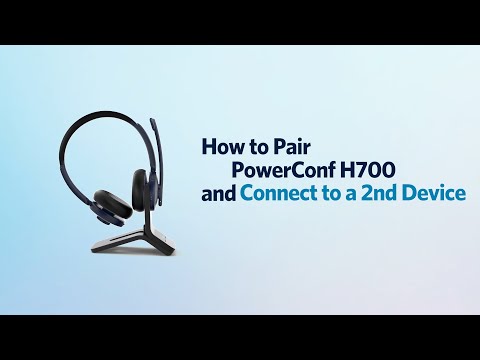
How to Pair PowerConf H700 and Connect to a 2nd Device
Play video
How to Use the AnkerWork App
View More
Contact Us