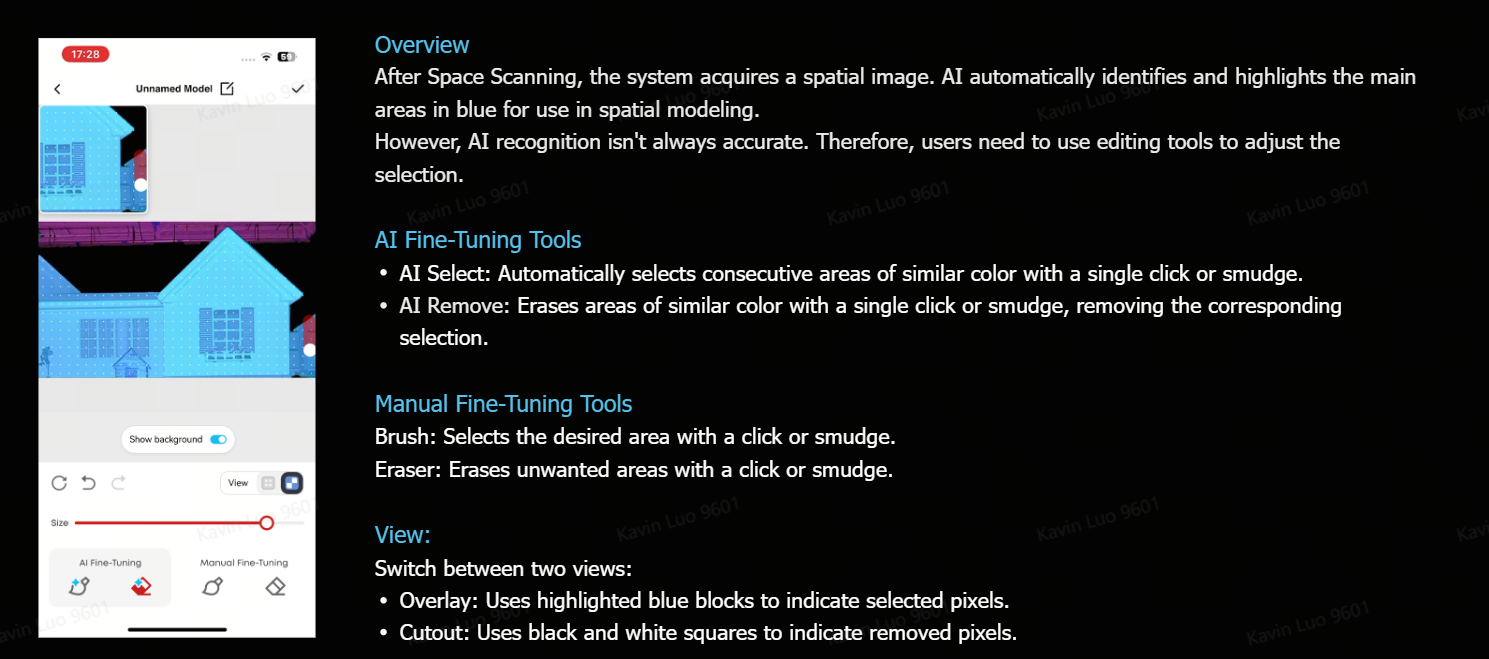
How do I edit the scanned space model?
Thank you for supporting our product.
Q: How do I edit the scanned space model?
A:Getting into edit mode is simple — two ways to get there:
• Right after scanning: Tap "Edit Model" directly
• From saved models: Go to your model list, pick the one you want, and tap Edit
Once you're in, you've got four tools at your fingertips:
• AI Add — Paint over an area and let AI smartly add connected regions
• AI Remove — Paint over an area to intelligently deselect regions
• Brush — Pixel-by-pixel precision for detailed edge work
• Eraser — Undo selections with surgical precision
Pro tip: Zoom in before fine-tuning — it makes a big difference!
If you have any other questions, please don't hesitate to contact Nebula Customer Support at service@soundcore.com for further assistance.


61 undefined
Can I create content freely — upload custom videos or input AI prompts?


Bluetooth suddenly disconnects during use. What should I do?
How do I check the current firmware version?
Will my settings and data be kept after a firmware update?
What should I do if a firmware update fails?
What are Sparks credits and what are they used for?
Will all data be deleted after a factory reset?
When using a Mesh Wi-Fi system, the app says my phone and device are on different networks. What should I do?
The app's bottom buttons are obscured or unclickable on an Android phone. What should I do?
How long does a firmware update take?

A3961 QSG V2(1)
EU Declaration of Conformity for soundcore Liberty 4_A3953
EU Declaration of Conformity for soundcore A3i_A3992
Q20i_QSG
EU&UK Declaration of Conformity for soundcore Sleep A10_A6610
A3947_Liberty 4 NC_QSG
View More

SpaceFlow-How to Cast Mapping Videos
SpaceFlow-Complete Setup and Usage Guide
SpaceFlow-How to Update Device Firmware(OTA)
SpaceFlow-How to Generate a Mapping Video
SpaceFlow-How to Scan and Create a Space Model
SpaceFlow-How to Connect SpaceFlow
View More


