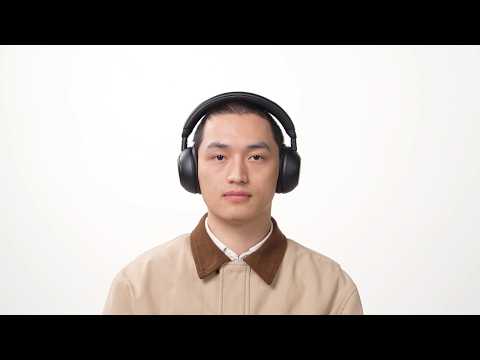
Make sure the ear cups are worn on the correct sides
The soundcore Space 2 has directional microphones positioned to face toward your mouth when worn correctly. If the ear cups are worn on the wrong sides, the microphones end up pointing toward the back of your head, which will naturally result in poor call audio quality for the other party. Check that the L (left) and R (right) markings on each ear cup match the correct ear before making a call.
Check in-app audio settings (WhatsApp, Zoom, etc.)
Some conferencing or calling apps (such as WhatsApp or Zoom) do not automatically select the connected headphones as the default input device. Please check the app’s audio settings and confirm that soundcore Space 2 is selected as the microphone and audio device, as this can otherwise result in the microphone not being active or audio behaving inconsistently.
Keep devices close
Wireless interference and weak network signals can affect call quality.
-
Make sure your phone is within 3 meters (10 feet) of the headphones. Avoid having walls or metal obstacles between them.
-
Reduce interference by keeping away from Wi‑Fi routers, microwaves, and USB 3.0 devices, as they may interfere with Bluetooth signals.
-
Ensure your phone has a stable cellular or Wi‑Fi connection during calls.
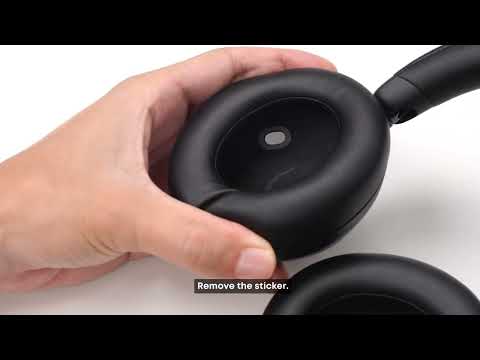
Make sure there is no dust or debris blocking the microphone opening
The microphones are located on the outer side of the ear cups. Clean them gently with a soft, dry cloth if needed.
Check device and app permissions
Call apps must have permission to use the microphone and Bluetooth.
Go to Phone Settings → App Management → select the app → ensure microphone and Bluetooth permissions are enabled.
iOS: Settings → Privacy → Microphone
Android: Settings → Application Permissions
Note: On iPhone, the permission path may differ slightly depending on the system version.
When using Space 2 with a Windows computer
If the headphones are simultaneously connected to multiple devices (e.g. a phone and a computer), protocol conflicts may occur. Bluetooth headphones use different protocols for calls (HFP/HSP) and music (A2DP).
-
Try disconnecting one device and test calls again.
-
Make sure the microphone input in Windows Sound Settings is set to Headset or Hands-free.
Disable Low Latency or Gaming mode
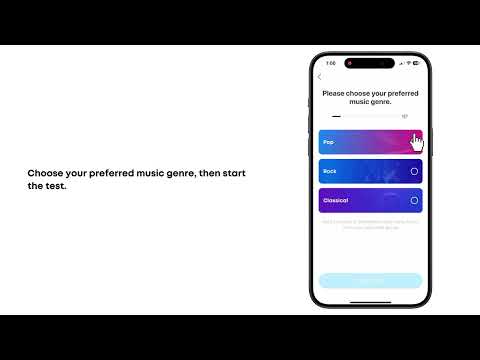
If enabled, Low Latency or Gaming mode may affect call stability. Try disabling it in the soundcore App and test the call again.
If you encounter any other issues or your issue has not been resolved, please contact us for further assistance.