Dear user,
Thank you for choosing soundcore Aerofit 2 Pro! As the world’s first dual-form earbuds featuring both open-ear and ANC(active noise cancellation) Forms, they perfectly cater to your all-day, cross-scenario needs.
Here are a few tips to help you get the most out of your Aerofit 2 Pro.
1.DUAL FORM WEARING AND SWITCHING
AeroFit 2 Pro has two wearing forms: Open-Ear and ANC. The built-in sensors can detect which form is in use based on whether the earbuds cover your ear canals.
1.1 Wearing in Open-Ear Form
-
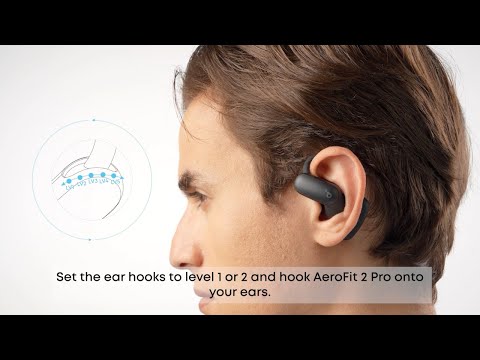
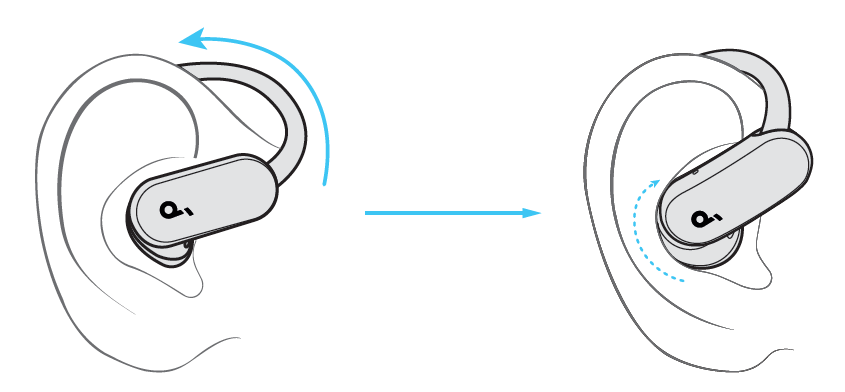
Place the ear hook over the outer ear.
-
Adjust the ear hook along your outer ear by sliding it between the five available levels, making sure the sound outlet faces the entrance of your ear canal.
-
Earbuds rest on the ears, keeping the ear canals clear.
This form ensures your ear canals remain unobstructed, reducing pressure and allowing for comfortable long-term wear without blocking out surrounding sounds.
Recommended for use:
-
During outdoor activities (e.g., jogging, cycling, or situations where you need to stay aware of your surroundings)
-
Indoors (e.g., in the office, at home, or in situations where awareness of ambient sounds is preferred)
1.2 Wearing in ANC Form
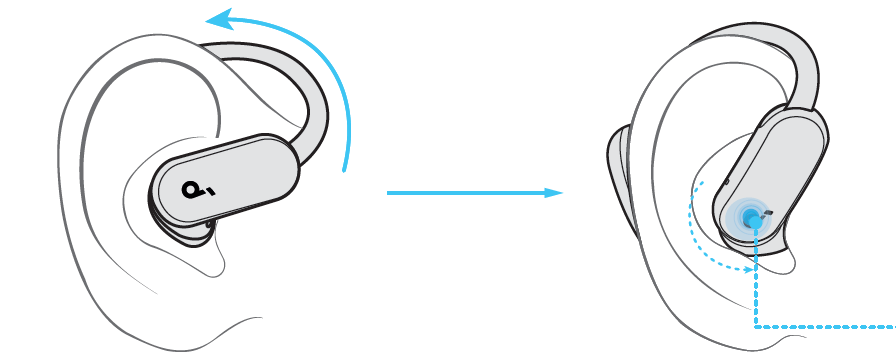
-
Place the ear hook over the outer ear.
-
Place the earbuds to cover the ear canals.
-
Adjust the ear hook along your outer ear by sliding it between the five available levels, ensuring a good seal and comfortable fit.
-
When both earbuds are positioned in ANC form, you will hear a prompt tone, and adaptive noise cancellation (ANC) will be activated.
In this form, ANC can be enabled, providing enhanced audio quality and bass performance.
Recommended for use:
-
In noisy environments (e.g., on public transportation, subways, airplanes)
-
When focusing (e.g., listening to music, taking calls)
Note:
-
When switching to ANC Form, ANC is enabled by default. You can disable this feature through Smart Toggle in the app to control ANC manually.
-
When Smart Toggle is turned off, ANC can only be activated manually.
-
ANC cannot be enabled while in Open-Ear Form.
-
Press and hold the earbud button for 2 seconds on either side to manually turn ANC on or off.
1.3 Switching Between Forms
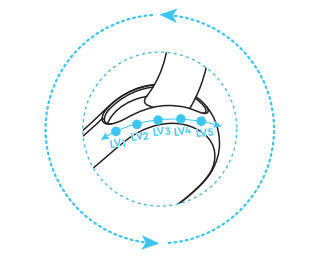
Adjust the earbuds' position and ear hook by sliding it between different levels to easily transition between Open-Ear and ANC forms.
Level 1-2: Typically Open-Ear Form
Level 4-5: Typically ANC Form
Level 3 is a neutral position that maintains the current form used (Open-Ear or ANC) to prevent abrupt, accidental switching.
Please select the wearing form that best suits your environment and preferences to enjoy a more versatile and comfortable user experience.
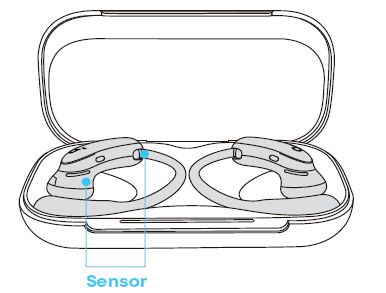
Note:
During the switching process, please avoid covering the sensor to prevent incorrect detection.
Inconsistent Volume/Audio Quality When Switching Between Forms
The Aerofit 2 Pro comes equipped with an adaptive sound adjustment feature by default, designed to ensure you enjoy an optimal listening experience in both wearing forms.
When you switch between forms, the Aerofit 2 Pro automatically adjusts the audio parameters based on your selected wearing form. This adjustment process typically takes 2-5 seconds, depending on the form transition. Additionally, due to the varying seal levels between the two forms, you may notice subtle differences in the actual sound perception. This is a normal characteristic of the dual-form design and is no cause for concern. Please feel free to continue enjoying your earbuds.
2.How to Troubleshoot Low Volume Issues
Low volume may be related to system settings. Please follow the steps below to adjust:
Android:
Find "soundcore AeroFit 2 Pro" in your device's Bluetooth list, press the settings icon on the right, and enable "Sync Bluetooth device volume with phone."
iOS:
Go to "Settings" >"Sounds & Haptics" > "Headphone Safety," and turn off the "Reduce Loud Audio" option. If this feature is enabled, your phone will automatically limit the volume.
3.How to Use Key Audio & Function Features
3.1 How to Set Up Hear ID
a.Hear ID provides a personalized listening experience.
b.The UI images shown are for illustrative purposes only. The actual interface may differ depending on software version and language.
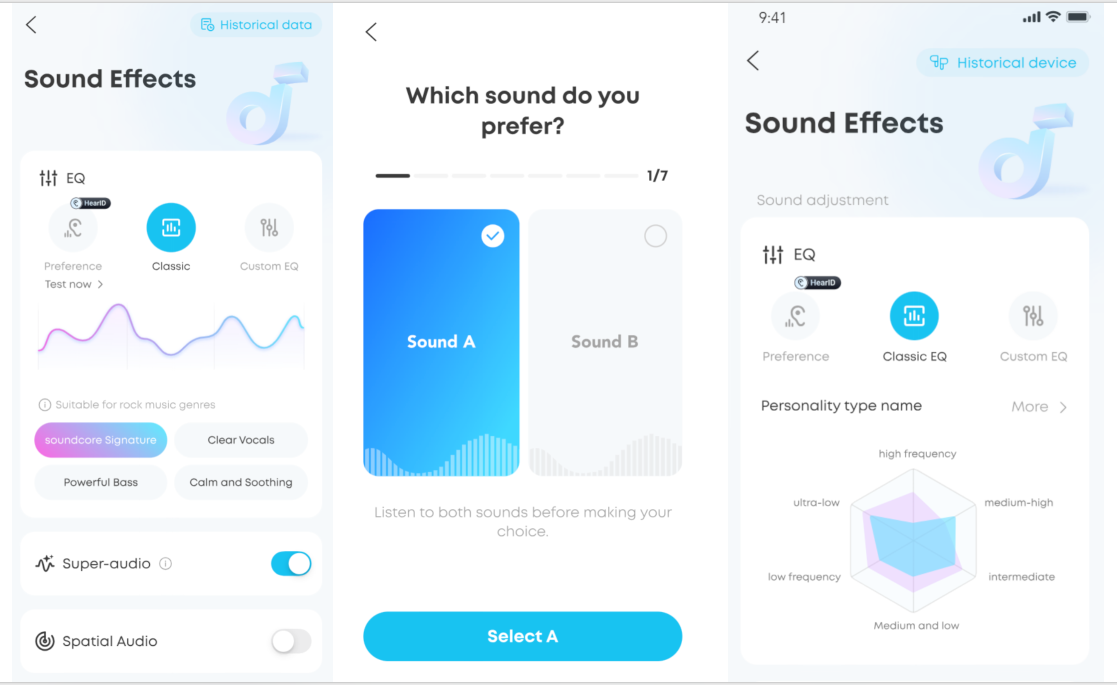
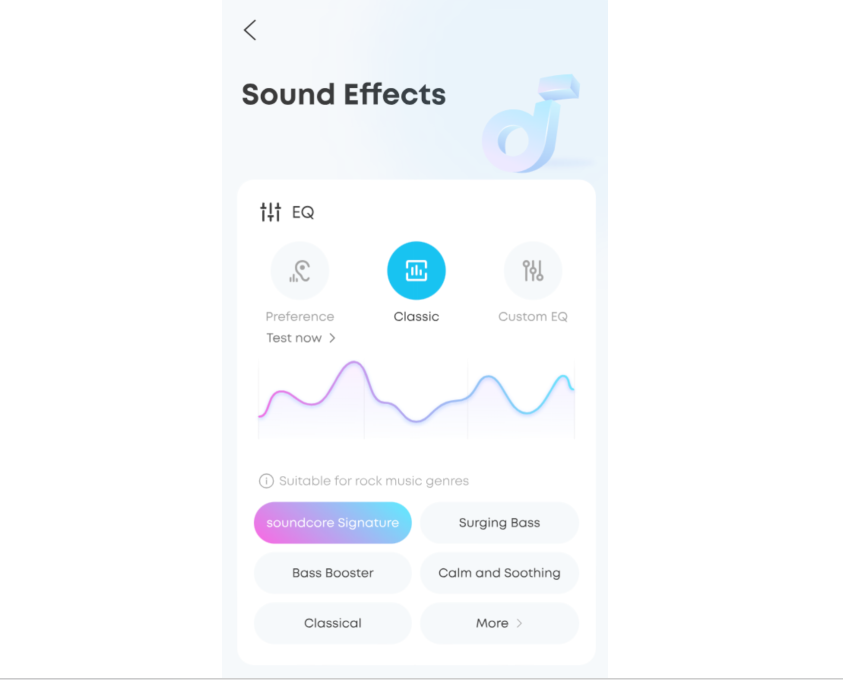
c. To set up Hear ID, go to Sound Effects > EQ > Preference, then tap Test now.
Follow the on‑screen instructions and complete the short test, which involves choosing your preferred music styles and sound types.
d.Once the test is completed, the app will automatically generate your unique Hear ID profile.
e.Note: The Open‑Ear Form currently does not support Hear ID testing. Please keep the earbuds in ANC Form.
3.2 How to Enable Spatial Audio
The UI images shown are for illustrative purposes only. The actual interface may differ depending on software version and language.
Spatial Audio creates an immersive listening experience by surrounding you with sound. You can choose between the following Spatial Audio modes in the soundcore app:
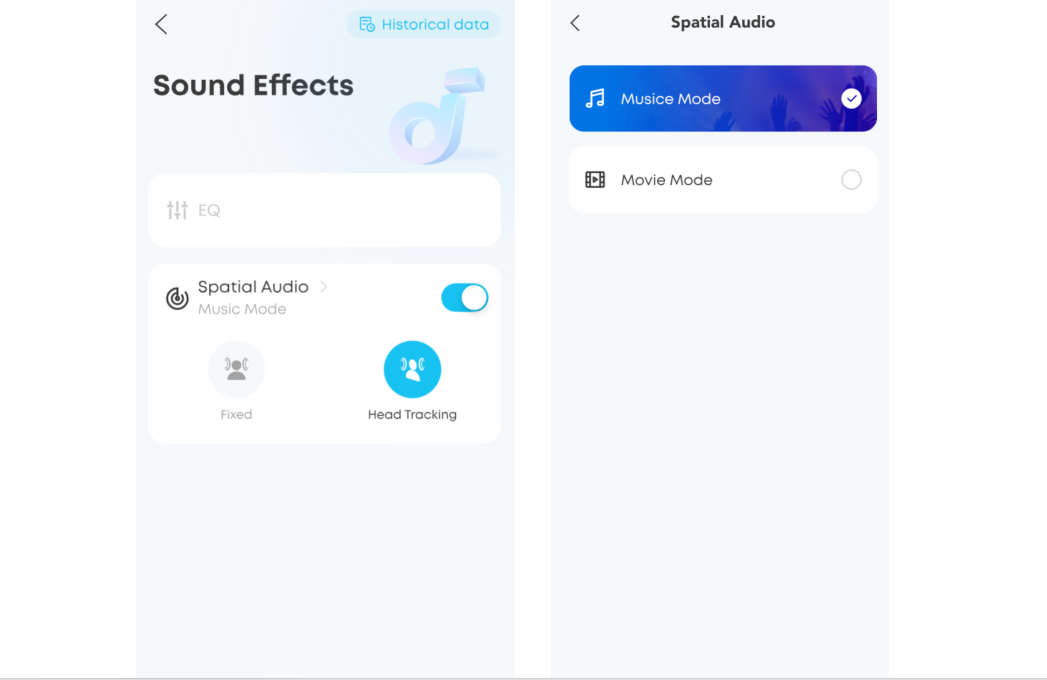
Head Tracking: Hear surround sound that follows your head movement.
Music Mode: Provides the most suitable music experience by adapting to your surroundings and head position.
Movie Mode: Enhances your cinematic experience with rich, immersive audio that brings actions to life.
Fixed: Listen to Spatial Audio without head tracking.
3.3 How to Adjust EQ Settings
The UI images shown are for illustrative purposes only. The actual interface may differ depending on software version and language.
The soundcore app provides default sound settings for both Open-Ear and ANC modes.
You can also choose from 22 EQ presets to match your usage scenario and preferences.Additionally, you can create your own sound profile by adjusting the eight sliders in Custom EQ.
3.4 How to Use LDAC High-Res Audio
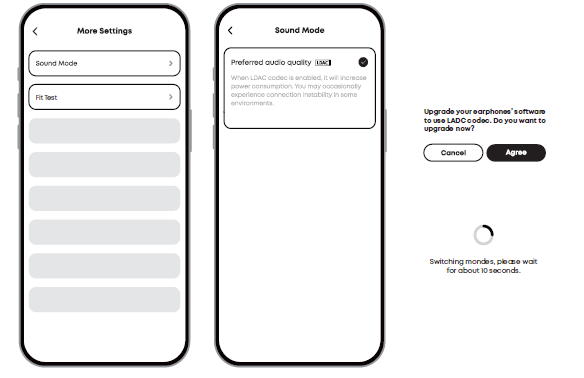
To use the LDAC codec, use devices running Android 8.0 or higher.
LDAC offers higher sound quality but uses more power, which will reduce battery life.
For a stable Bluetooth connection, enable LDAC in low-interference environments.
The UI images shown are for illustrative purposes only. The actual interface may differ depending on software version and language.
In the soundcore app:
Go to Settings>Sound Mode>Preferred audio quality>Agree.
Note:
Switching audio codecs takes about 10 seconds. You may be prompted to update the firmware if a new version is available.
4.How to Use Earbud Controls
1.The table below shows the default button control settings.
2. Customize Touch Controls via the soundcore App
3. Access Controls on the home page to customize touch controls. You can adjust the volume, skip songs, play or pause audio, and activate the voice assistant with touch gestures.
5.How to Charge Earphones
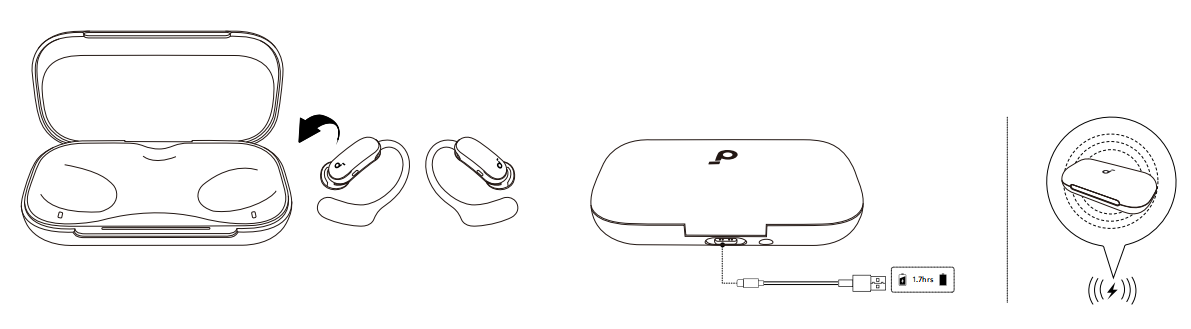
Place the earbuds in the charging case and close it.
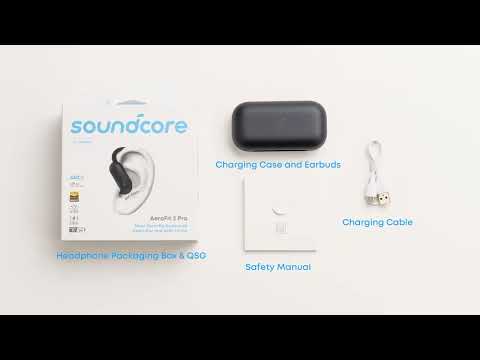
Connect the charging case to a power supply using the provided USB-C charging cable. Alternatively, place the charging box at the center of your wireless charger for wireless charging.
Note:
Ensure the earbuds and the USB-C charging port are fully dry before charging.
A full recharge of the case takes 1.7 hours via the cable and 2.6 hours wirelessly.
6.How to Power On & Off the Earbuds
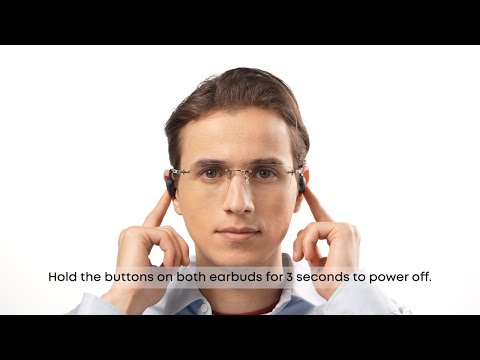
To power off the earbuds, there are two ways.
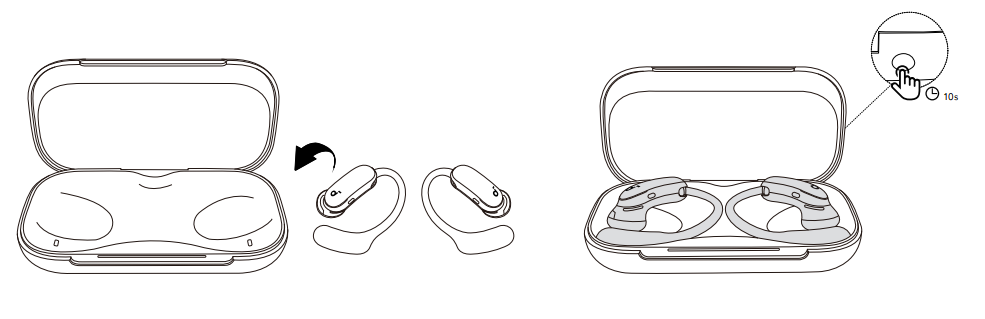
Place both earbuds in the charging case and close it. The earbuds will power off automatically.
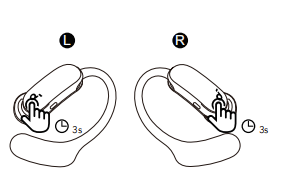
Alternatively, hold the buttons on both earbuds for 3 seconds to power off. To turn a single earbud back on, hold the button on that earbud for 3 seconds.
If not connected, the earbuds will automatically power off after 30 minutes of inactivity. You can customize the auto-off period in the soundcore app.
7.How to Maintain and Clean the Earbuds
7.1 Cleaning After Exercise
After exercising, wipe the sweat off the charging contacts. If the earbuds are placed into the charging case while still wet, sweat and dirt can accumulate over time, causing poor contact and issues with powering off or charging.
7.2 Charging Indicator Check
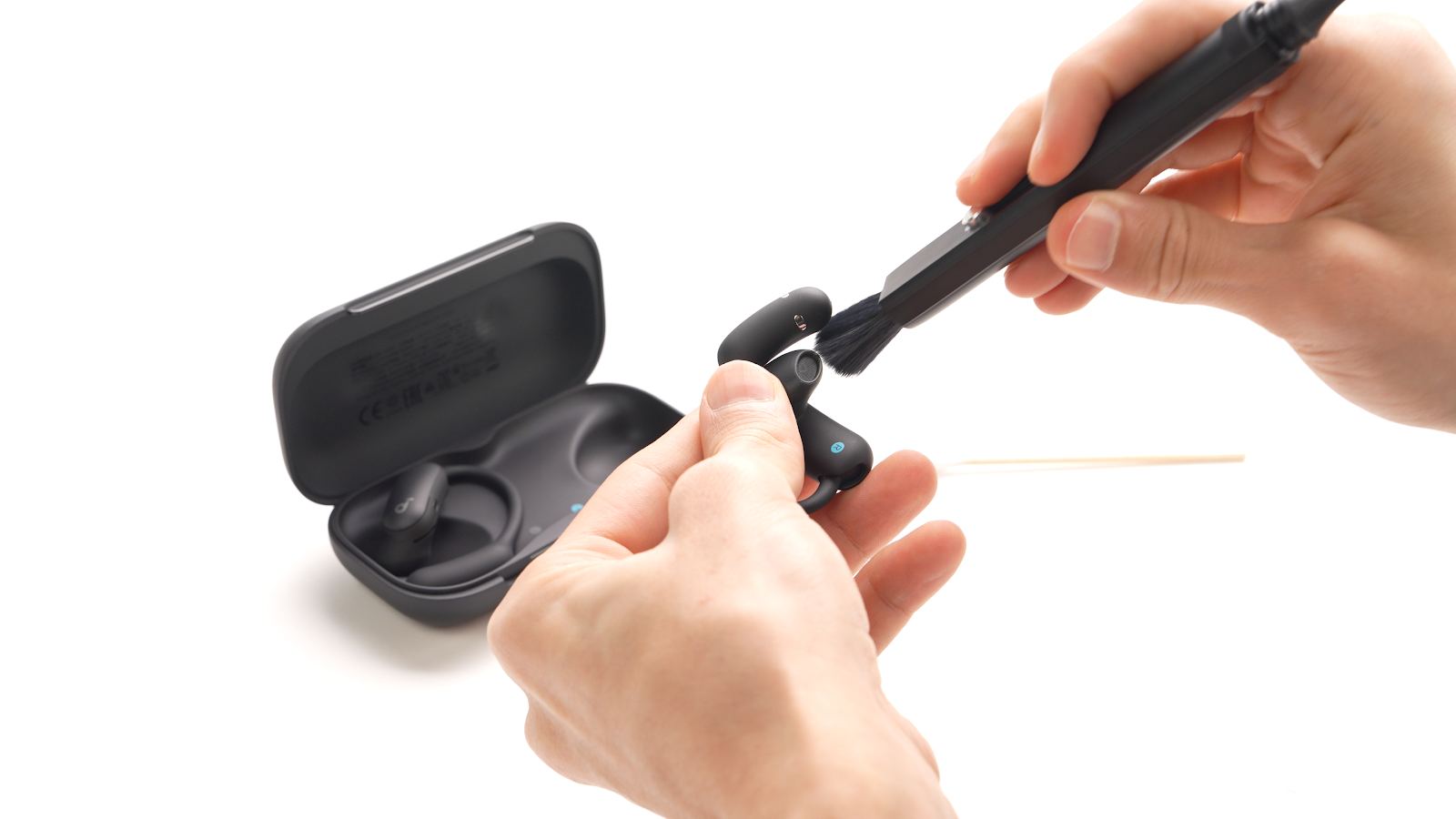
When you place the earbuds in the charging case, the case indicator light should turn on and then off. If it doesn't light up, there may be poor contact between the earbuds and the case. To fix this, gently clean the charging contacts on both the earbuds and the case with a cotton swab or a dry cloth lightly dampened with alcohol.
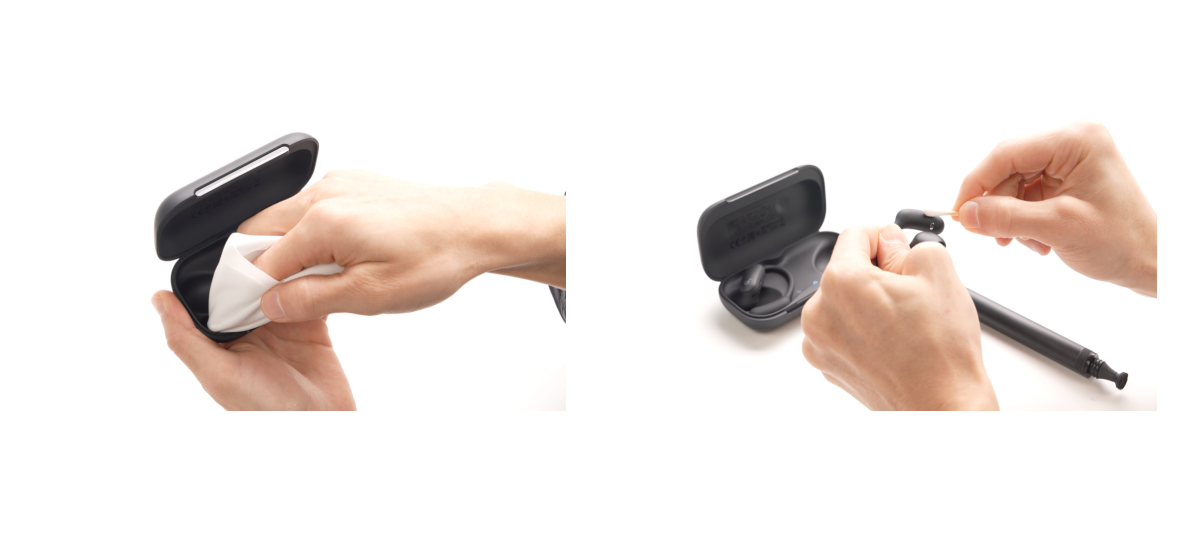
7.3 Daily Maintenance
After each use, clean the earbuds and charging case with a soft, dry cloth. Use a cotton swab or dry cloth to clean the charging contacts, and use a brush to clean the speaker mesh of the earbuds.