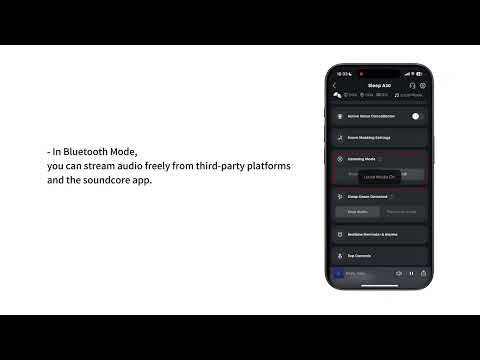
Sleep A30 can sync your sleep data with Apple Health (iOS) or Health Connect (Android) once you enable the feature and grant the necessary permissions.
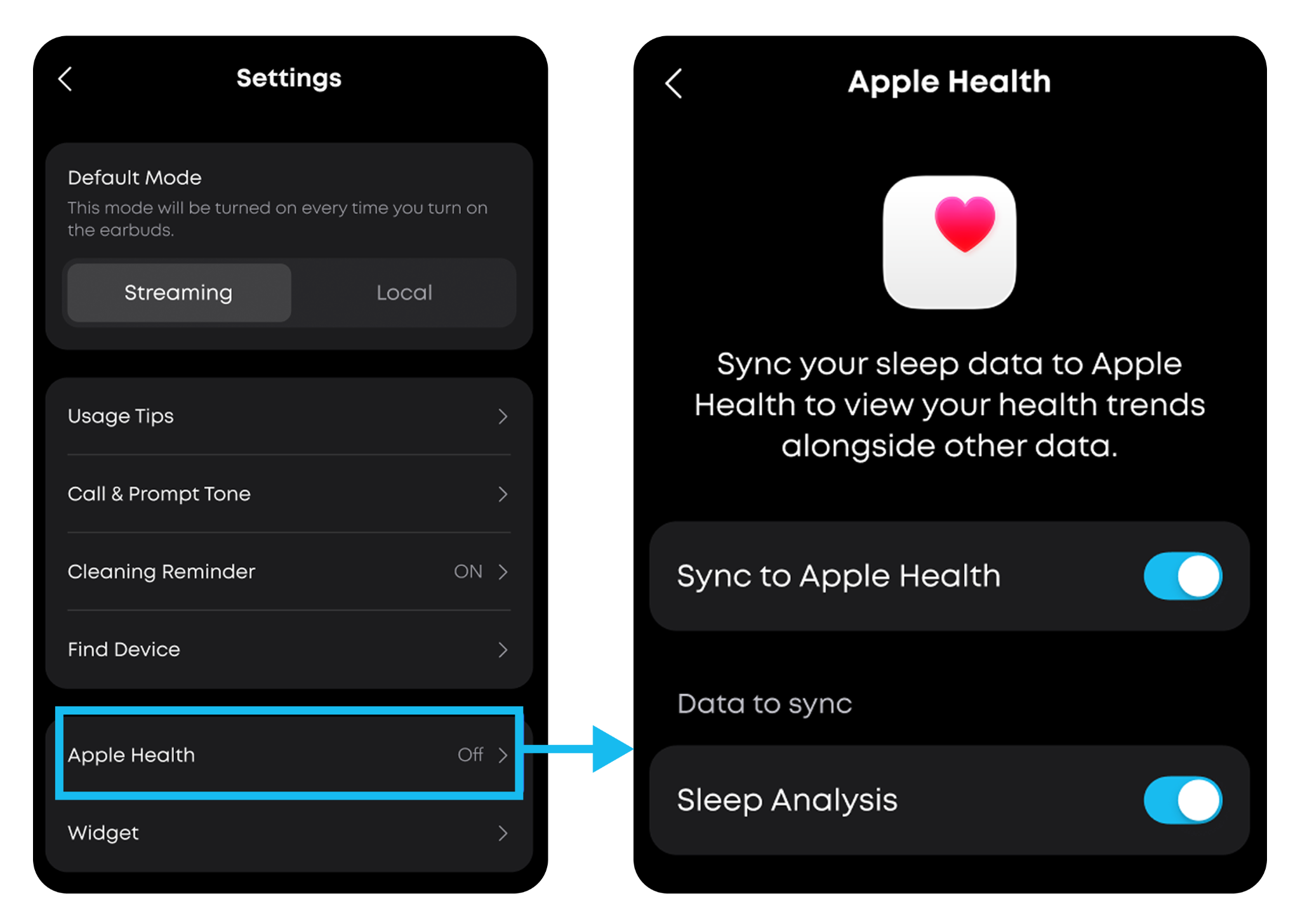
For iOS (Apple Health):
1. Go to Sleep A30 > More Settings > Apple Health > turn on "Sync to Apple Health."
2. When prompted, tap Allow All to grant permissions.
- If you miss the prompt or accidentally deny it, go to Settings > Health > Data Access & Devices > soundcore > "Allow" all options.
3. Your sleep data will automatically appear in the Apple Health > Sleep section.
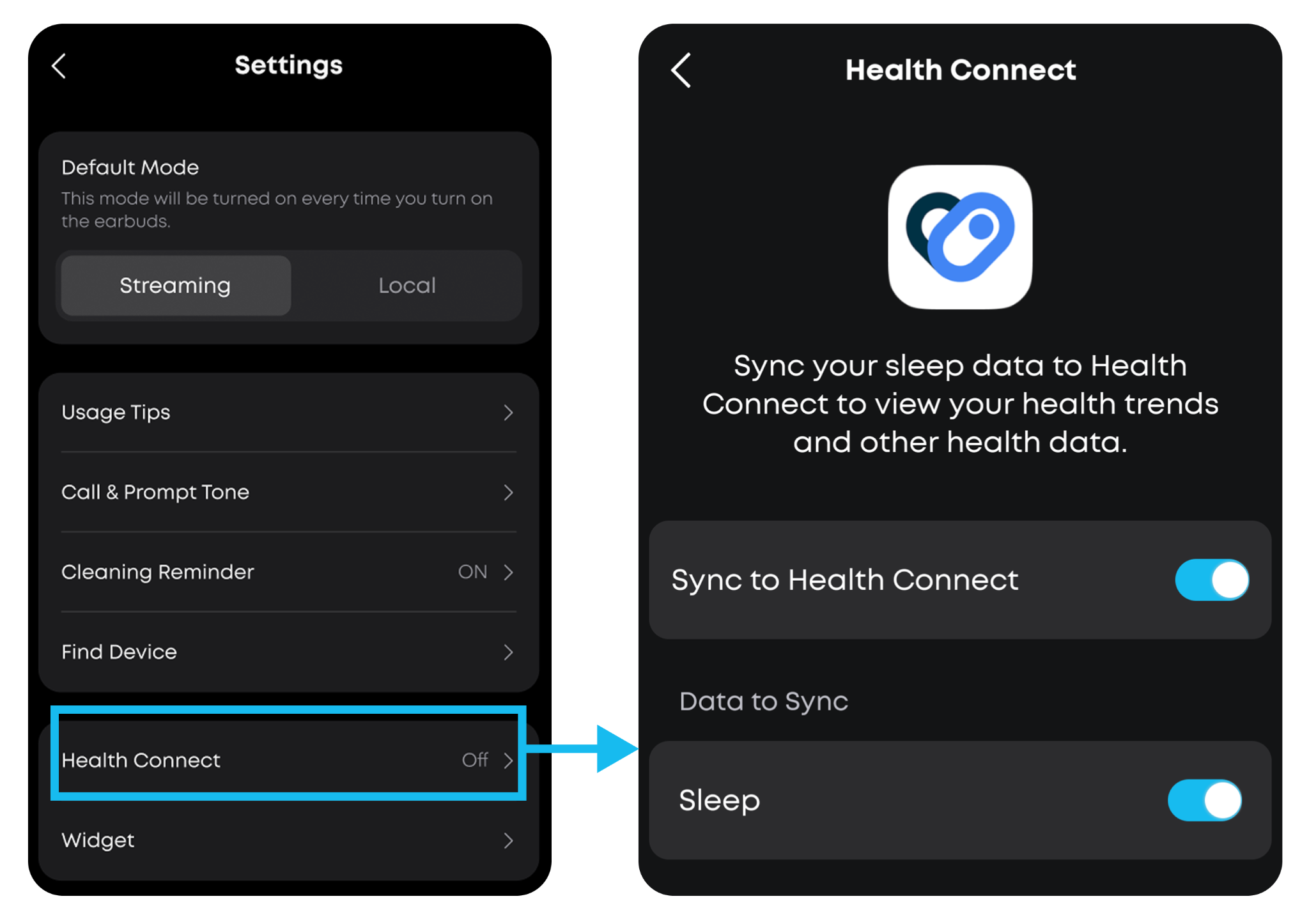
For Android (Health Connect):
1. Go to More Settings > Health Connect and turn on "Sync to Health Connect.”
2. When prompted, select the required permissions and tap "Allow."
- If you miss the prompt or accidentally deny it, go to System > Settings -> Privacy > Health Connect > App Permissions > soundcore > "Allow" all options.
3. Once enabled, your data will sync automatically and can be accessed by apps like Samsung Health or Google Fit (ensure "Read from Health Connect" is enabled in those apps).
Note: For Android 13 and earlier versions, please download Health Connect from Google Play first; devices without the Google Services Framework or running Android 8 and earlier versions do not currently support data synchronization.
If you have any more issues or your issue has not been resolved, please contact us for further assistance.