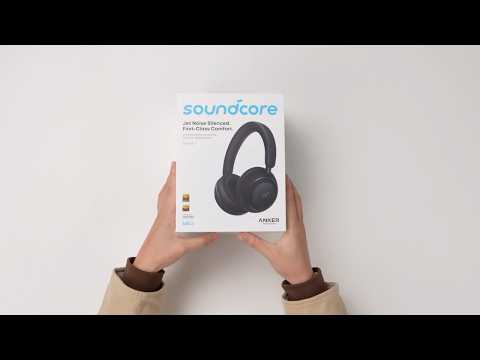
What should I do if I can't find my soundcore Space 2 in the soundcore app?
If your Space 2 is already connected to your phone via Bluetooth but does not appear in the soundcore app, please follow these steps:
-
Download and install the soundcore app from the Google Play Store or Apple App Store.
-
Make sure the headphones are successfully connected to your phone via Bluetooth.
-
Open the soundcore app.
-
On the home screen, tap Add Devices.
-
Select the headphones icon.
-
Choose soundcore Space 2 from the list to complete setup.
What should I do if my soundcore Space 2 can't connect to the soundcore app?
-
Check dual‑device connection.
When the headphones are connected to two devices at the same time, the soundcore app can only connect on one device. Check whether the soundcore app is open or running in the background on both devices. If it is, close the app on one device (remove it from recent/background apps), then try connecting again on the device you want to use.
-
Check call status on iPhone.
If you are using an iPhone, the soundcore app may not connect properly while a phone call is active.
End the call first, then reopen the soundcore app and try connecting again.
Why doesn't the call sound quality improve after adjusting EQ settings in the soundcore app?
The EQ and sound settings in the soundcore app are designed to affect media playback only (e.g., music, videos, and podcasts).
What should I do if the firmware update on my soundcore headphones fails?
-
Do not disconnect during the firmware update.
-
Do not disconnect from the network during the firmware update.
-
Do not close the app during the firmware update.
-
Ensure the headphones remain in standby during the firmware update.
-
Navigate to Phone Settings, access the application management interface, and clear the soundcore app cache.
-
Try updating again.
If you encounter any other issues or your issue has not been resolved, please contact us for further assistance.