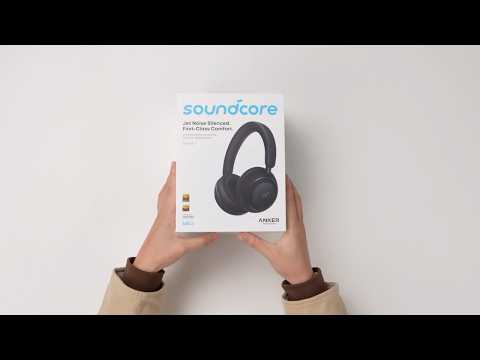
If the sound quality is not as expected, please try the steps below in order. In many cases, small adjustments can make a noticeable difference.
-
Improve the audio source quality.
The quality of the original audio file or stream plays an important role.
Try playing lossless formats such as FLAC or WAV if available. Avoid low‑bitrate files (for example, MP3 files below 128 kbps) as they may sound quiet or unclear.
-
Reduce environmental interference and ensure the network connection is stable.
When streaming online content, ensure your device has a stable network connection. Wireless interference and unstable connections can affect sound quality.
-
Reduce interference: Stay away from devices that use the 2.4 GHz band, such as Wi‑Fi routers, microwaves, and other Bluetooth devices.
-
Avoid obstacles: Make sure there are no walls, metal objects, or large obstructions between your phone and the headphones.
-
Check the Bluetooth audio codec.
Different Bluetooth codecs provide different sound quality. If possible, try switching to a higher‑quality codec in your phone's Bluetooth settings.
-
SBC (Basic Codec): High compression, lower sound quality; commonly used by most Bluetooth devices.
-
AAC: Widely used on Apple devices; better sound quality than SBC.
-
LDAC (Sony): Supports higher bitrates (up to 990 kbps) for improved sound quality; requires Android 8.0 or later and a compatible device.
-
Check phone audio effects.
Some phone system sound effects can interfere with the headphone's tuning.
Turn off features such as 3D Sound, sound enhancement, or system equalizers to avoid double processing.
-
Adjust sound settings in the soundcore app.
Open the soundcore app and choose an EQ preset that suits your listening preference. You can also create a custom EQ to fine‑tune the sound.
If you encounter any other issues or your issue has not been resolved, please contact us for further assistance.