What Should I Do If I Can't Hear Sound From the Built-In Speaker on My Nebula Capsule II?

If you don't hear any sound coming from the built-in speaker of your Nebula Capsule II, try the following steps: 

 
  1. Turn up the volume on your Capsule II and play different videos in multiple streaming apps;
  2. Update your Capsule II to the latest firmware by going to Settings > Device Preferences > About > System Update;
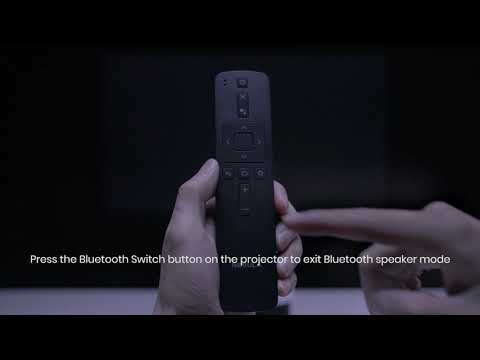
  3. Switch your Capsule II to Bluetooth Speaker Mode (refer to How to Use a Nebula Capsule II as a Bluetooth Speaker ). Then, connect your phone to your projector to play music and listen to see if you hear sound;
  4. When your Nebula Capsule II is in Projector Mode, connect your projector to a Bluetooth speaker or headphones via Settings > Remotes & Accessories > Add Accessories to test the sound;
  5. Reset your Nebula by selecting Settings > Device Preferences > Reset and try the built-in speaker again.
 

If you are still encountering an issue with the built-in speaker, contact us with the following information so we can help you find a solution faster:

  1. Your projector's current firmware version by going to Settings > Device Preferences > About > Firmware Version;
  2. A short video that shows no sound coming from your built-in speaker in both Projector Mode and Bluetooth Speaker Mode.
Unresolved icon
20 undefined
Download icon
D2421_Capsule II_QSG
Download icon
D2421_Capsule_II_EU_Declaration_of_Conformity_1
Download icon
D2421_Capsule II_Declaration of Conformity
Download icon
D2421_Capsule_II_EU_Declaration_of_Conformity_2
Download icon
D2421_Capsule_II_UK_Declaration_of_Conformity
Download icon
D2421_Capsule II_Manual
Play video
How to Set Up an Android TV Projector
Play video
How to Cast Content from My Android Phone on Android TV Projectors
Play video
Setting Up the Bluetooth Remote on Android TV projectors
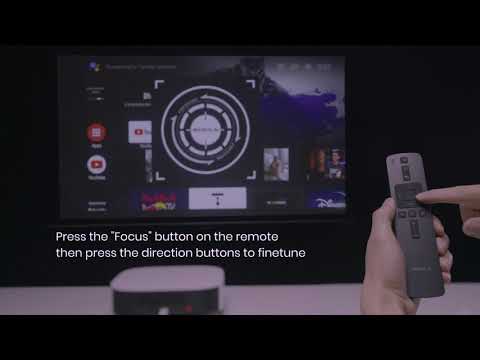
Play video
Auto & Manual Focus on Android TV projectors
Play video
Bluetooth Speaker Mode on Nebula projectors
Play video
How to Connect to Nintendo Switch on Android TV projectors
View More
Contact Us