The soundcore app is the control center for the Q31i's sound features. This guide explains how to customize your listening experience through the app, including EQ tuning, Spatial Audio (3D sound), and LDAC high-quality audio mode, as well as the mutual exclusion rules between them.If your phone has built-in Dolby audio, it is recommended to enable both the phone's Dolby and the headphone's 3D Sound for the best result.
EQ Tuning (Basic Tone Adjustment)
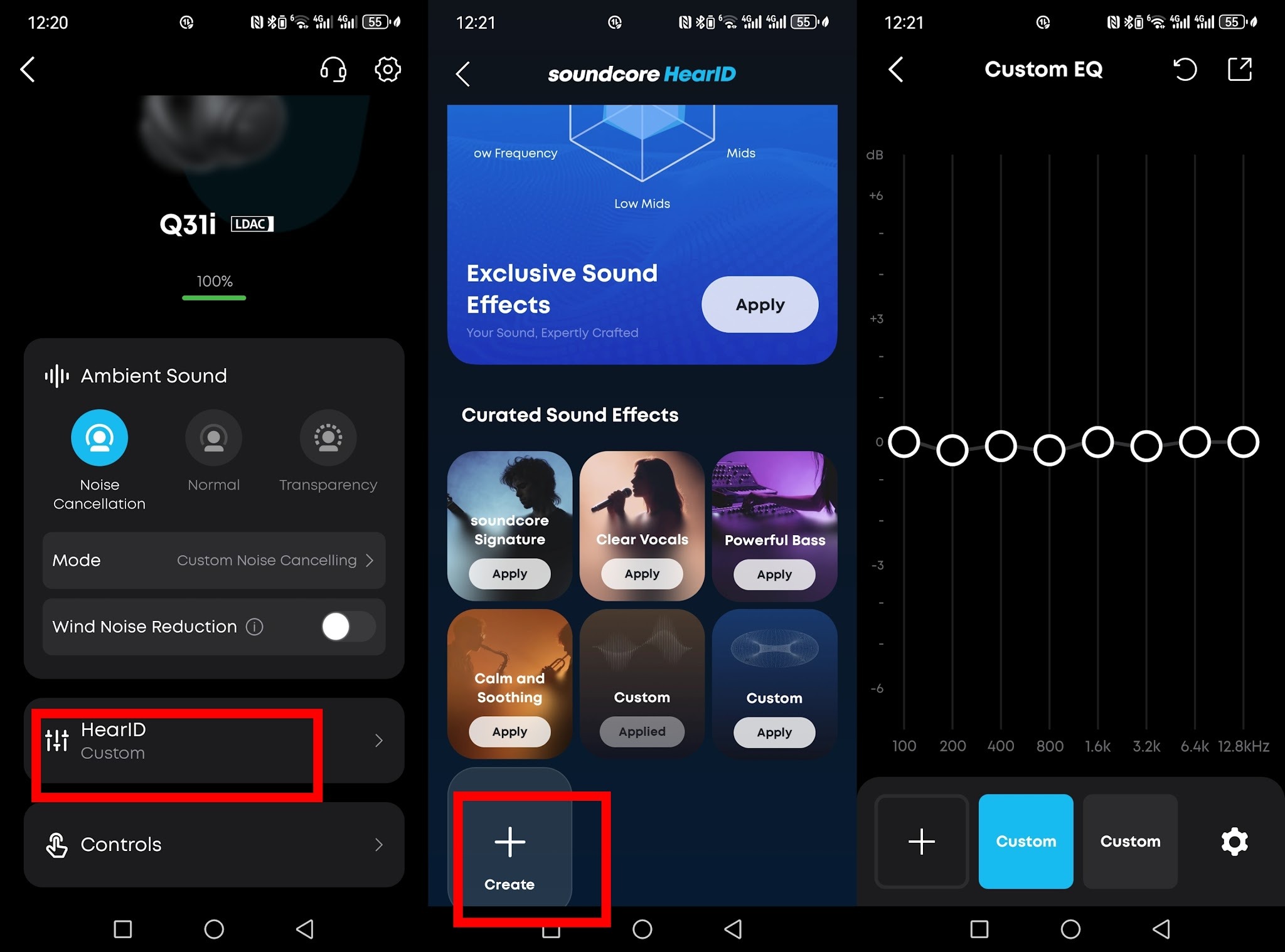
After signing in, you can create custom EQ tuning in the soundcore app under HearID > Create, and save your own EQ profile.
Note: EQ and sound effect settings in the soundcore app only apply to media playback (such as music, video, and podcast) and do not affect call audio quality.
Spatial Audio (3D sound)
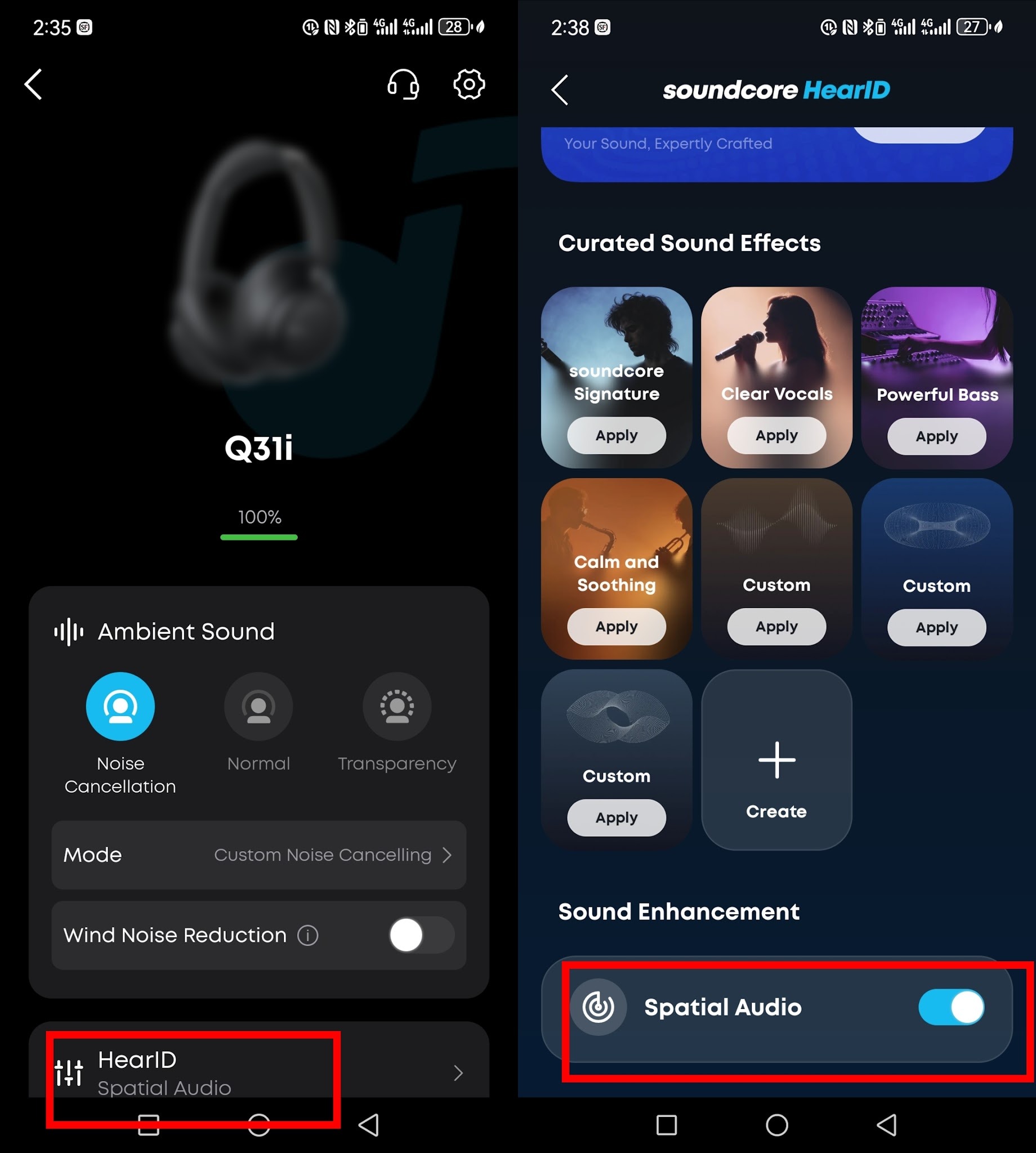
Spatial Audio is a spatial audio feature of the Q31i. When enabled, it enhances the stereo effect and sense of space, though audio quality may be slightly reduced.
-
Usage:After connecting your headphones to the soundcore app, go to "HearID", find "Spatial Audio", and turn it on.
-
Suitable scenarios: Ideal for watching movies or listening to live concerts for a more impactful feel. The effect varies across music genres (for some songs you may not notice an obvious change); it is not recommended for listening to podcasts.
LDAC High-Quality Audio Mode (High-Bitrate Audio)
LDAC is a high-quality audio transmission mode that delivers a better audio experience after it is enabled.
-
How to enable:
-
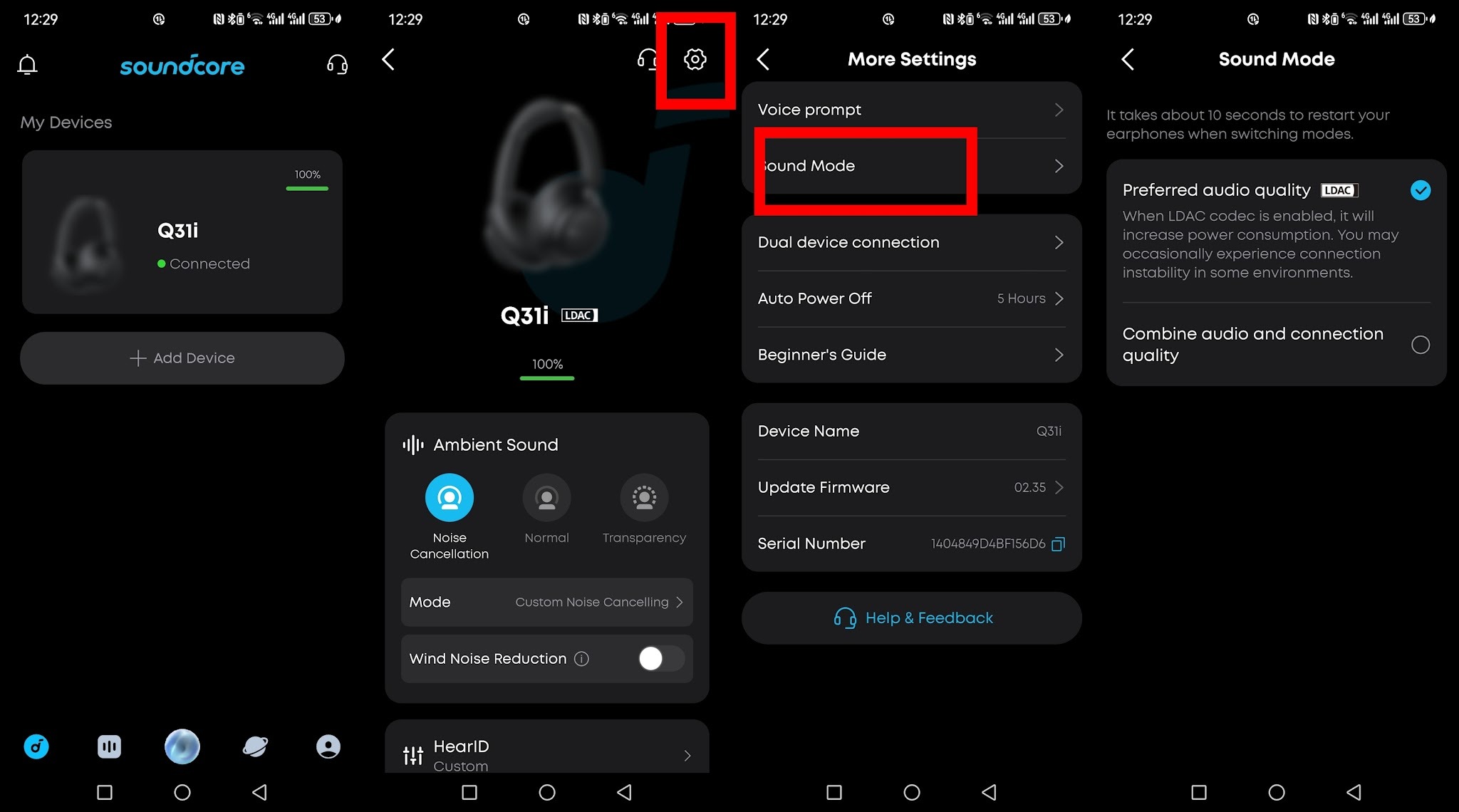
Android phones: In the soundcore app, go to "Settings" (top-right corner) > "Sound mode" and select "Audio Priority (LDAC)". Follow the prompts to update the firmware and you can experience LDAC.
-
Samsung phones: In addition to enabling it in the soundcore app, you also need to turn on the LDAC switch in the phone's system settings.
-
iPhones: LDAC is not supported.
If you encounter any other issues or your issue has not been resolved, please contact us for further assistance.


