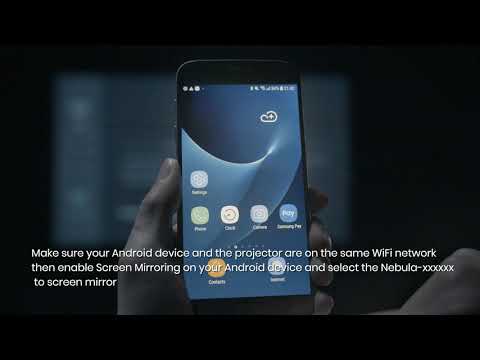
Both our Android projectors and Windows 10 system support Miracast, so you can mirror content from a Windows 10 PC to your Android projector through the following steps:
1. Connect your Windows 10 PC and the projector to the same Network. Note: The network can be a WiFi network or your phone's hotspot.
2. Open "Screen Cast" on Nebula by selecting Settings > General > Screen Mirroring > Android.
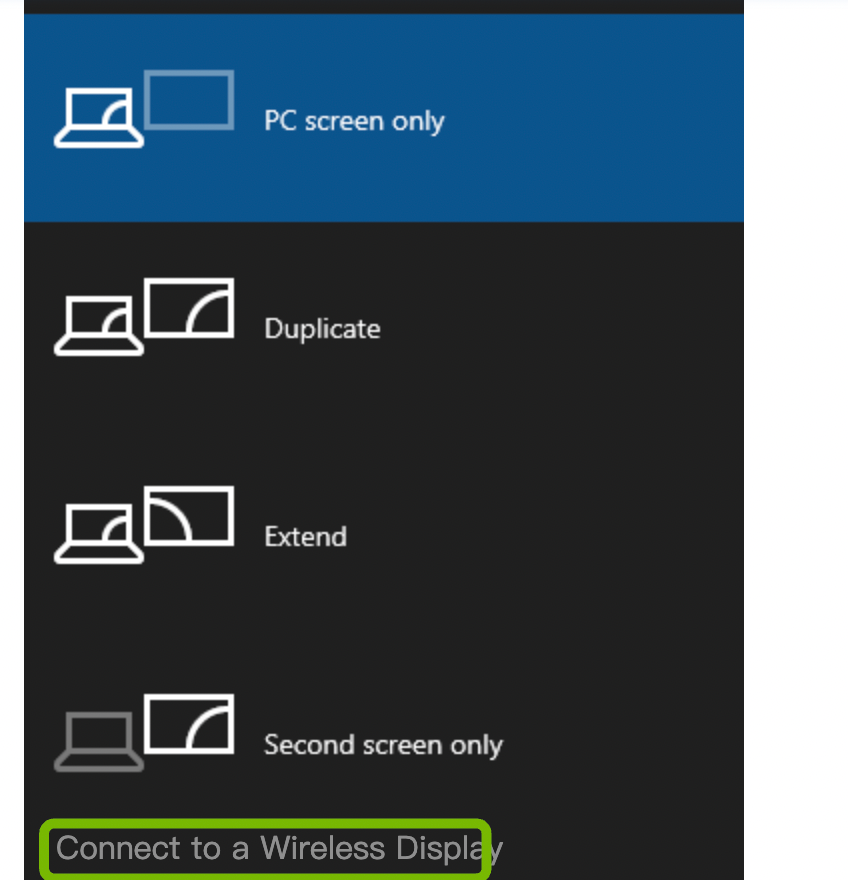
3. Open the Action Center on your Windows 10 computer and select Project.

4. Select "Connect to a Wireless Display".
5. A scan for wireless display devices will start. Select your Nebula device from the list of available devices, then your PC content will show on the projector screen.
If you cannot mirror properly, please contact us for further assistance.