How to Factory Reset My Nebula Capsule II Projector?
A reset can reboot your product or it can clear all product settings and revert your product to its original out-of-box state. If you encounter issues like automatic shutdown & reboot, frozen on Nebula logo, or colorful lines, please try to factory reset the projector.
To Restore to the Factory Default Settings:
Note: This reset erases all settings and data on your projector and revertsthe product to its default out-of-box state.
Hold the "Power" button for 2-3 seconds to turn it on.
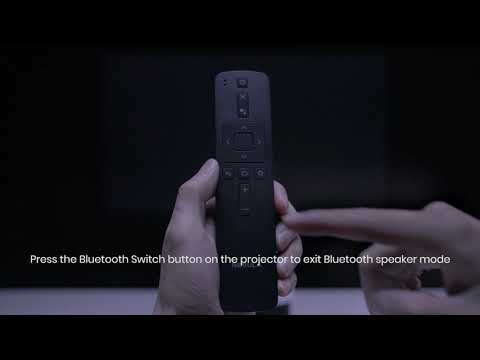
When the LEDindicator light turnson, keep pressing the home button on the remote until the Android Recoverypage appears.
Select "Wipe data/factory reset".
If you have additional questions, please contact Support@seenebula.com for further assistance. Make sure to mention that you have tried the listed steps so our agents do not ask you to repeat these steps.